


Loading
Video guides
Each lesson walks through a real panel screen, step by step, with captions and a written guide. Start at the top or jump to what you need today.
Start here
Getting started
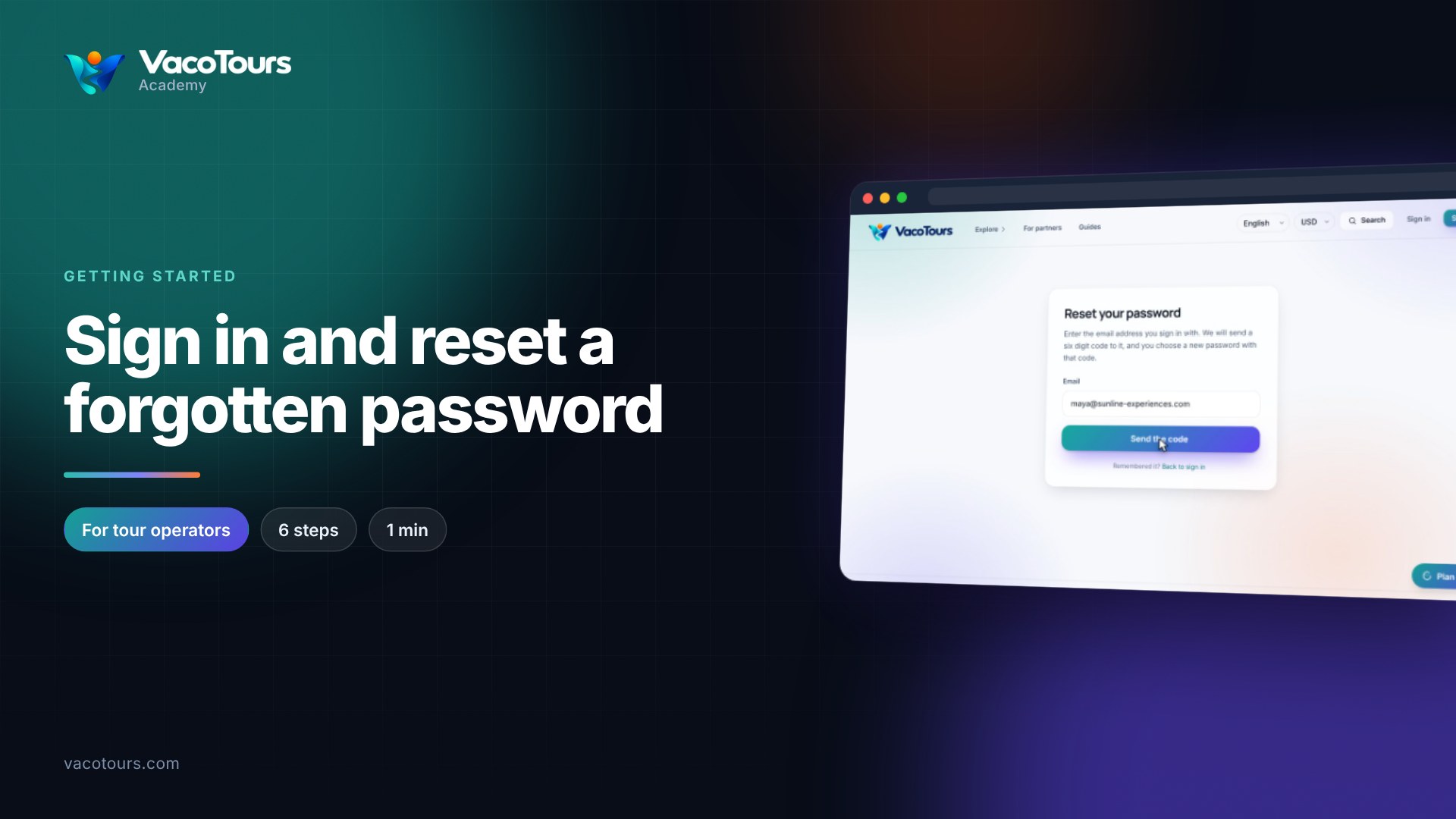
Sign in and reset a forgotten password
Sign in as an operator, and get a new password by email if you have forgotten yours.
Watch now1 min · 6 chapters
Sign in and reset a forgotten password
Sign in as an operator, and get a new password by email if you have forgotten yours.
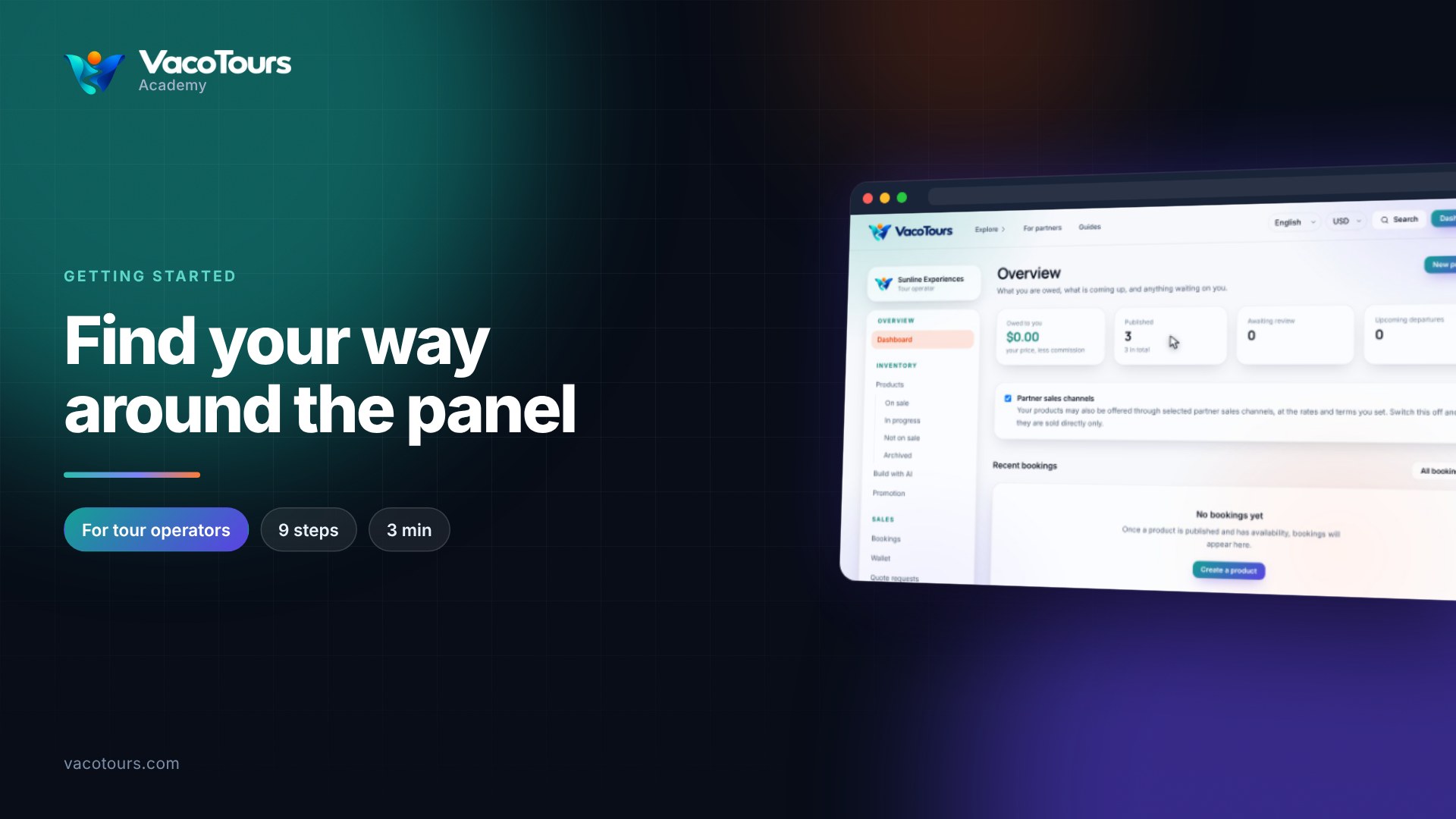
Find your way around the panel
Find your way around the supplier panel: overview, recent bookings, the main menu, display settings and partner channels.
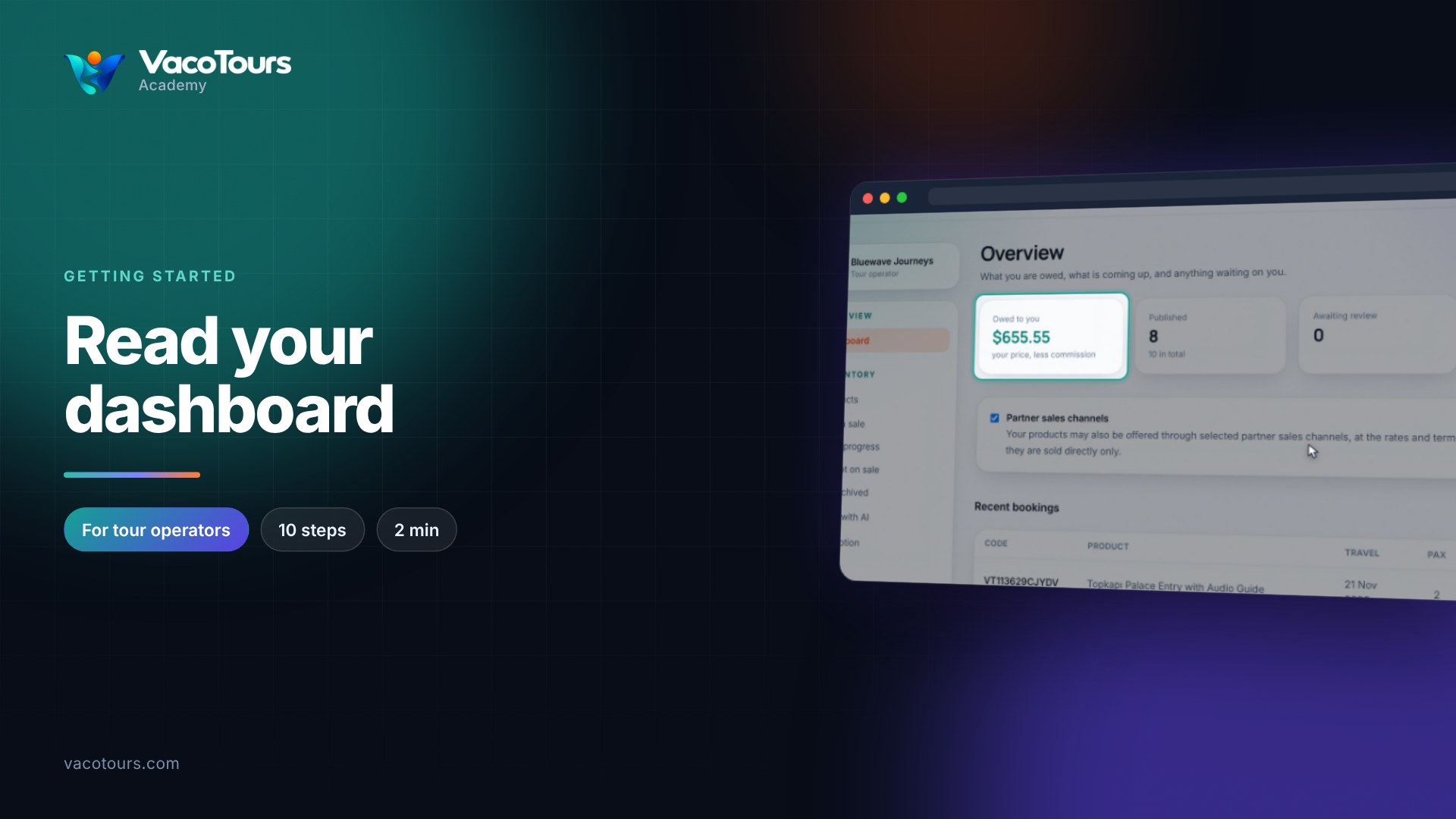
Read your dashboard
Read the four figures on your dashboard, the partner sales channels switch, and your most recent bookings.
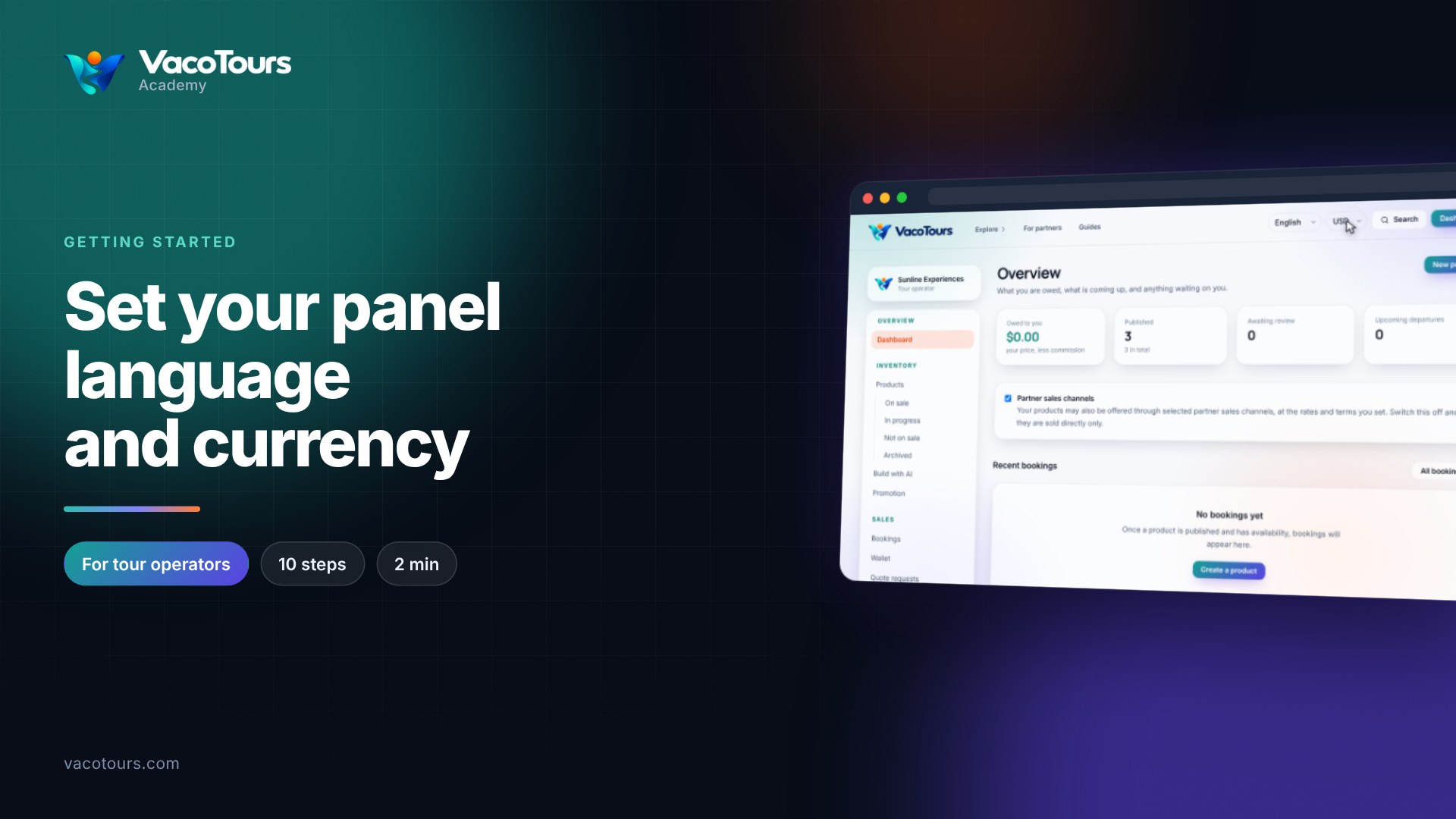
Set your panel language and currency
Switch the language and currency VacoTours shows you, and see how they change listings without touching your own prices.
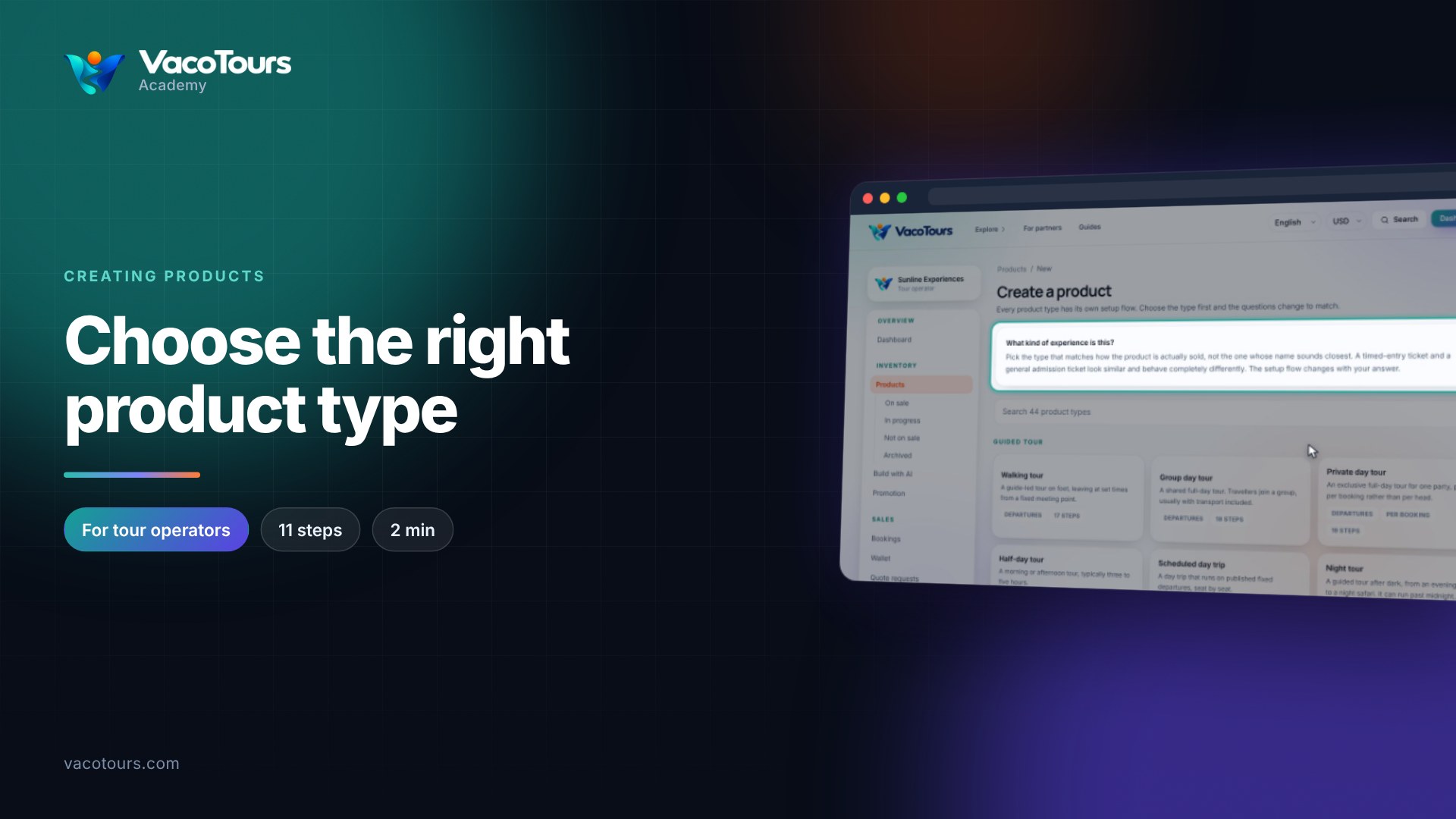
Choose the right product type
Pick the product type that matches how you sell, read the badges on each card, and see the setup flow it opens.
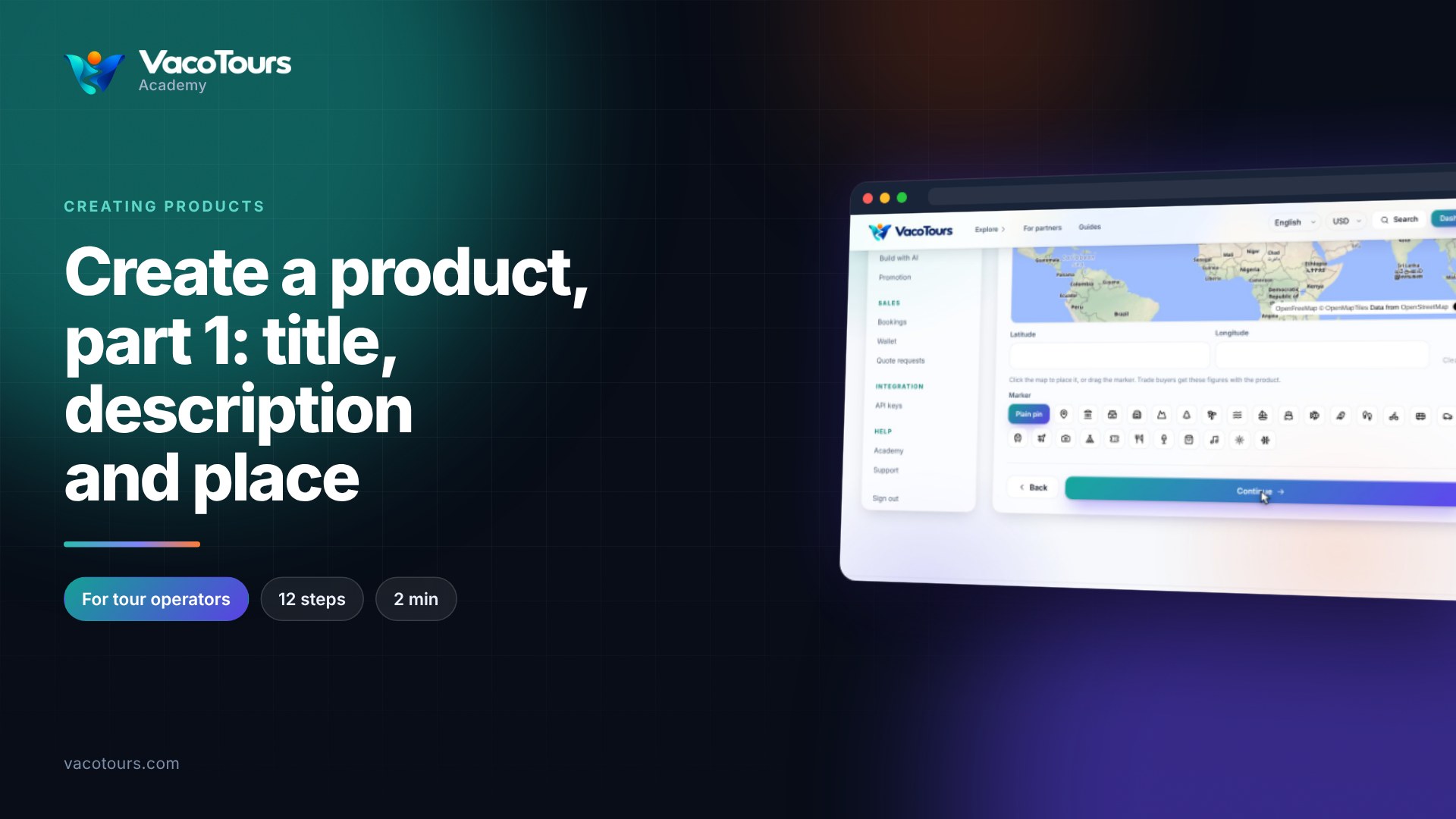
Create a product, part 1: title, description and place
Start a walking tour: give it a title and categories, describe it, and put it on the map. The draft saves itself as you go.
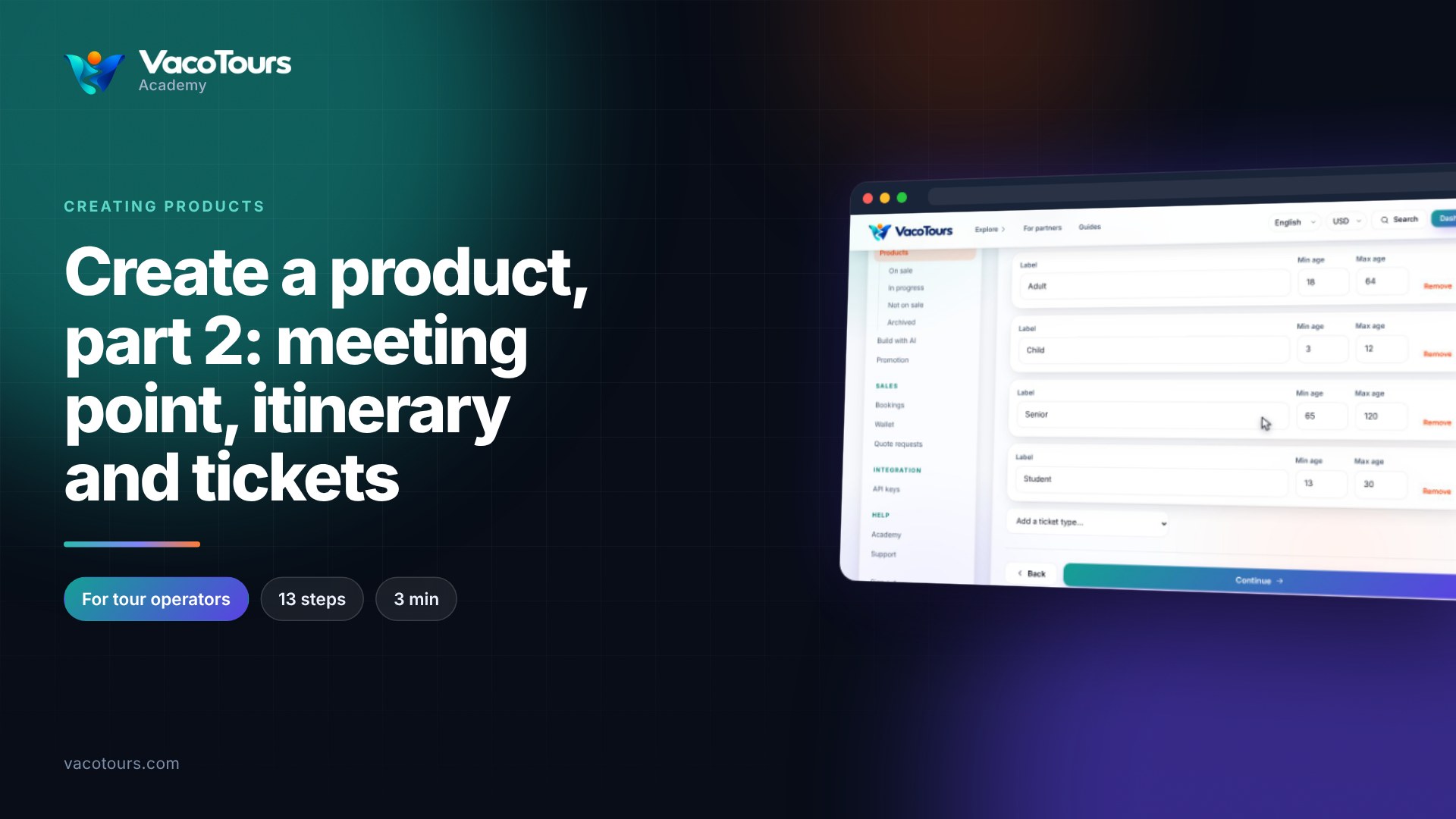
Create a product, part 2: meeting point, itinerary and tickets
Carry on a draft: set the meeting point, duration, itinerary, languages, bookable option and ticket types.
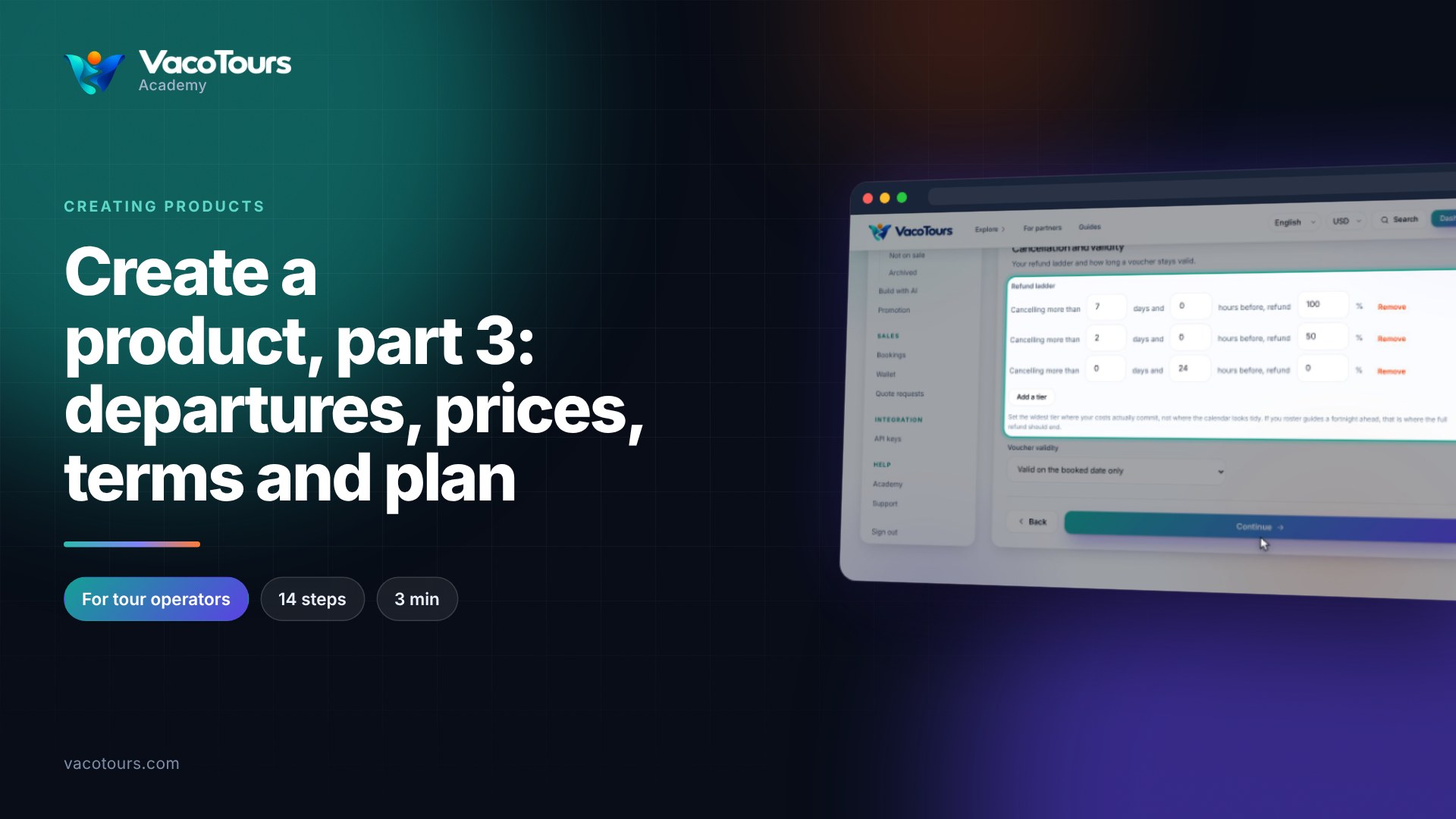
Create a product, part 3: departures, prices, terms and plan
Finish a draft: departure times, selling dates, prices, refunds, a checkout question, the voucher and a plan, then create it.
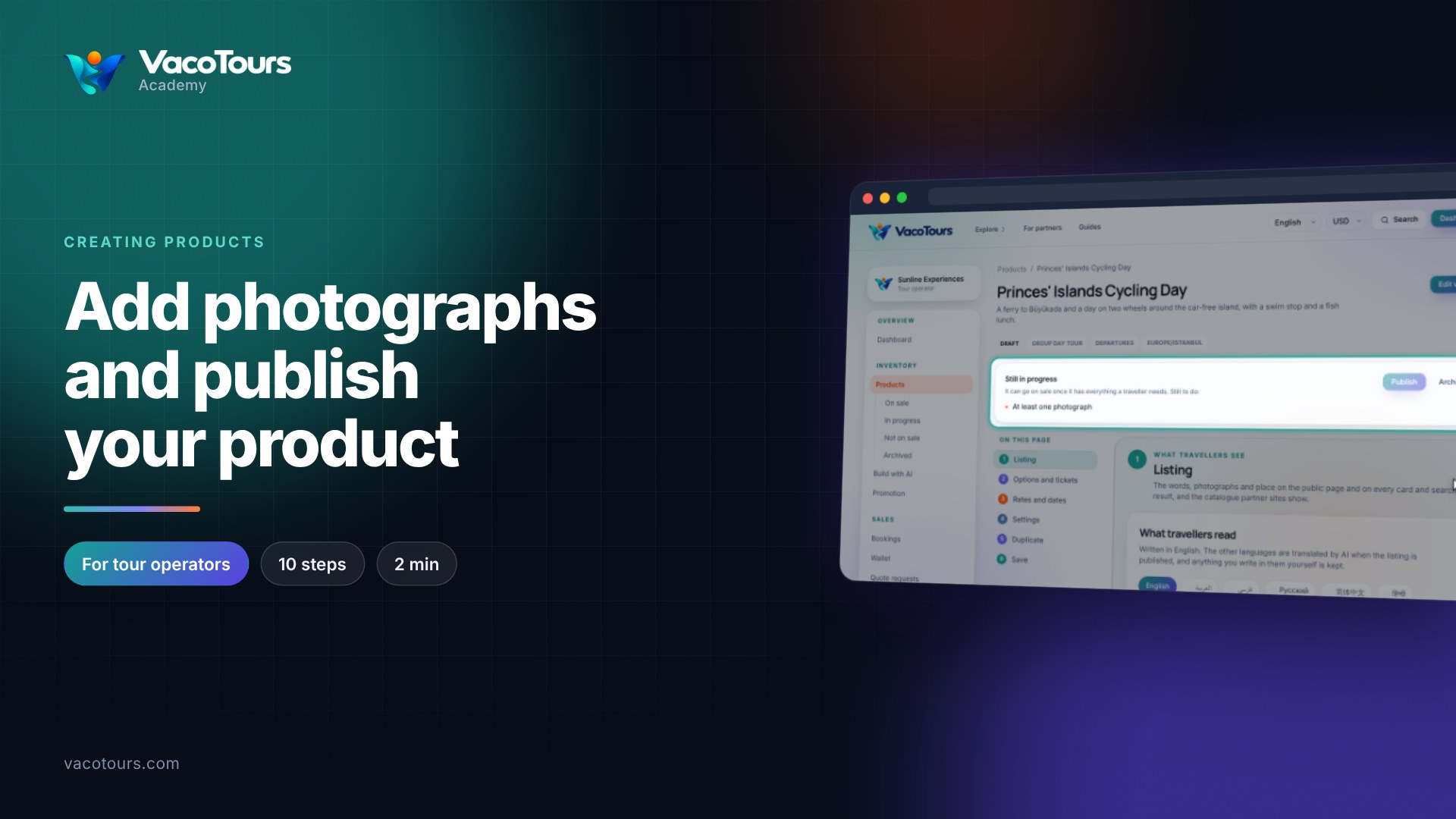
Add photographs and publish your product
Add photographs to a finished product, describe them, choose the main one, save, and publish it to the marketplace.
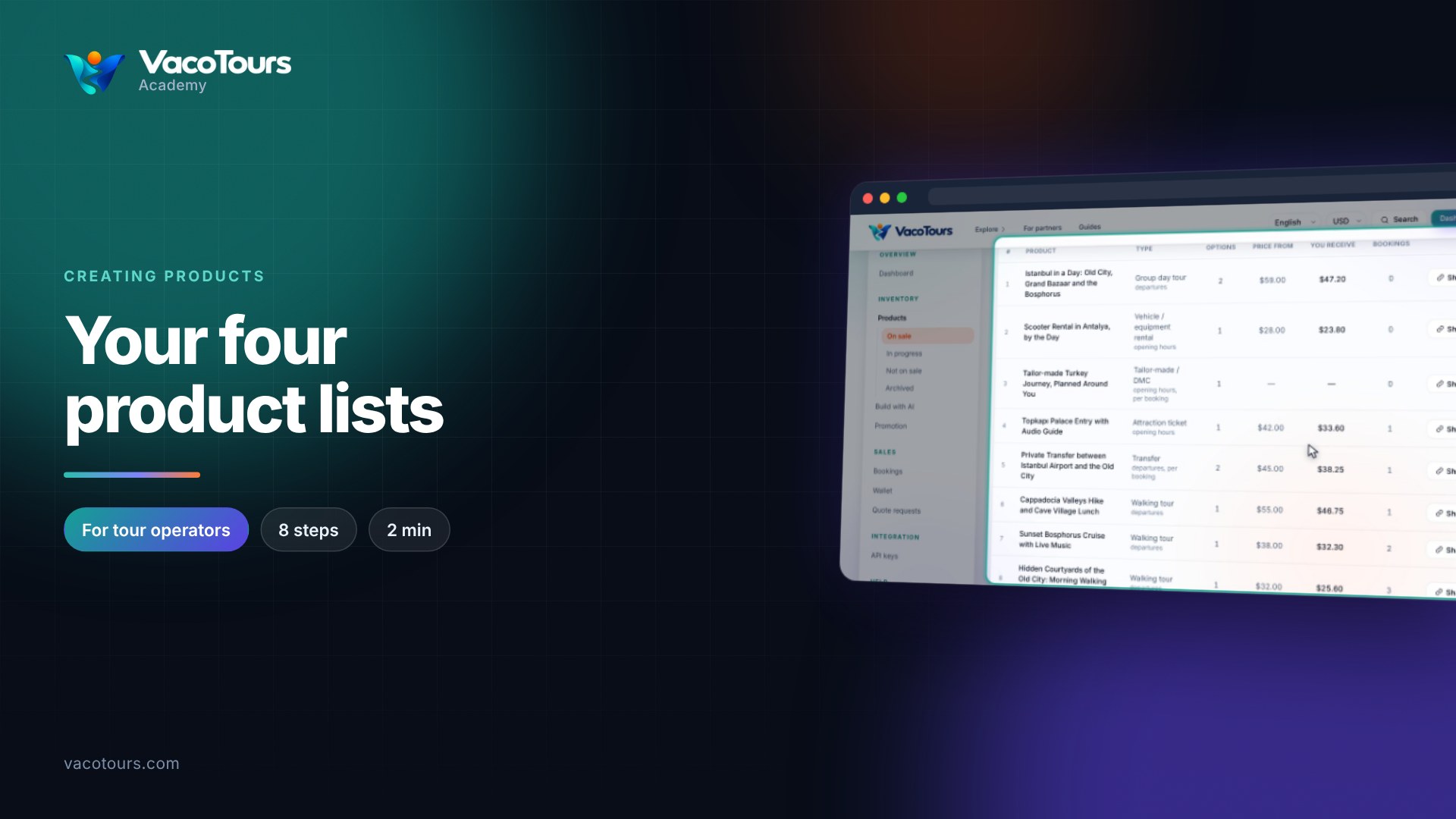
Your four product lists
Find your way around On sale, In progress, Not on sale and Archived, and what each list lets you do.
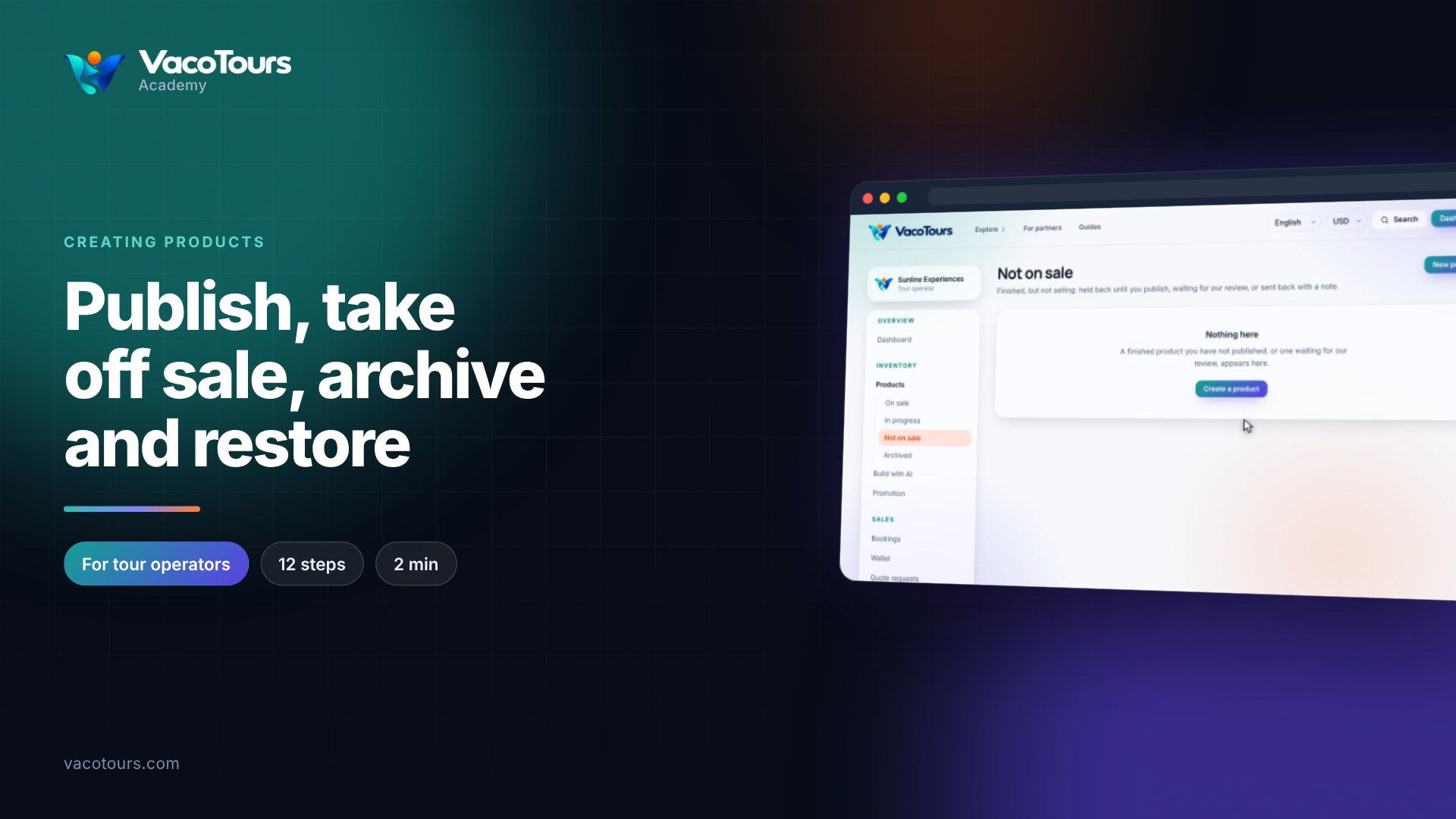
Publish, take off sale, archive and restore
Move a product through every status: publish it, take it off sale, archive it and restore it as a draft.
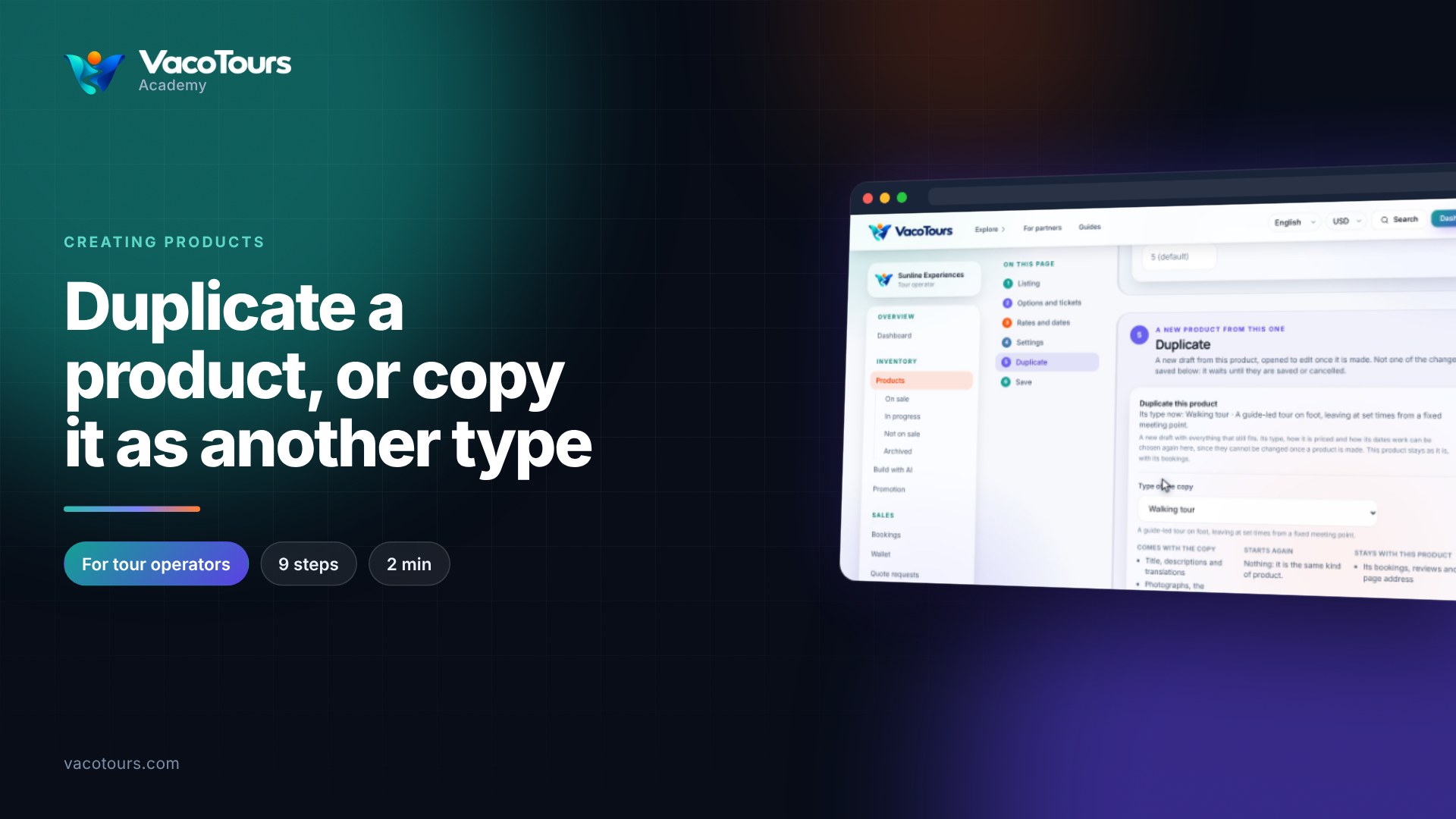
Duplicate a product, or copy it as another type
Copy a product into a new draft, and give the copy a different type, while the original and its bookings stay as they are.
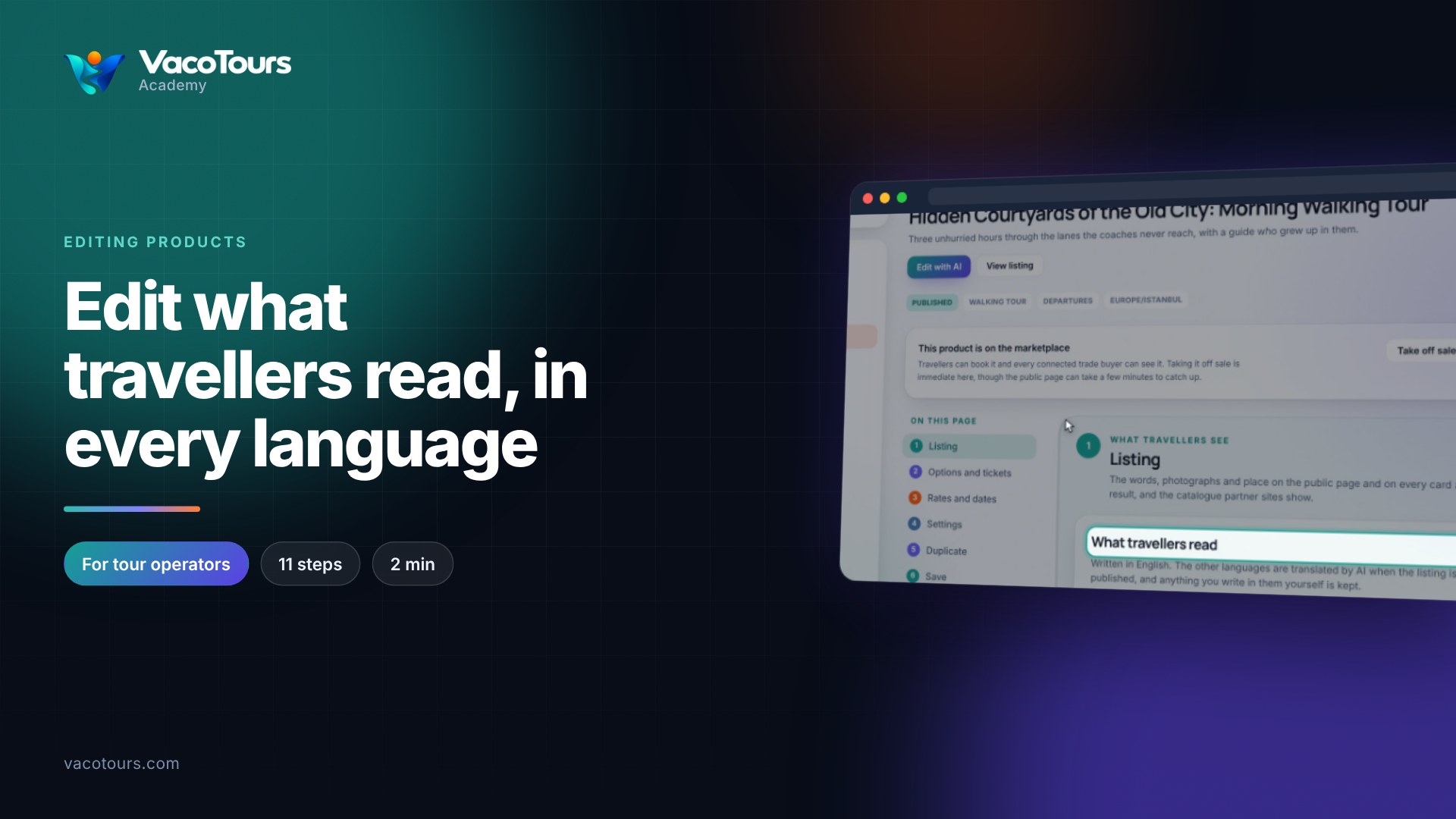
Edit what travellers read, in every language
Change a product's summary, highlights, search title and questions, check each language, and save it all at once.
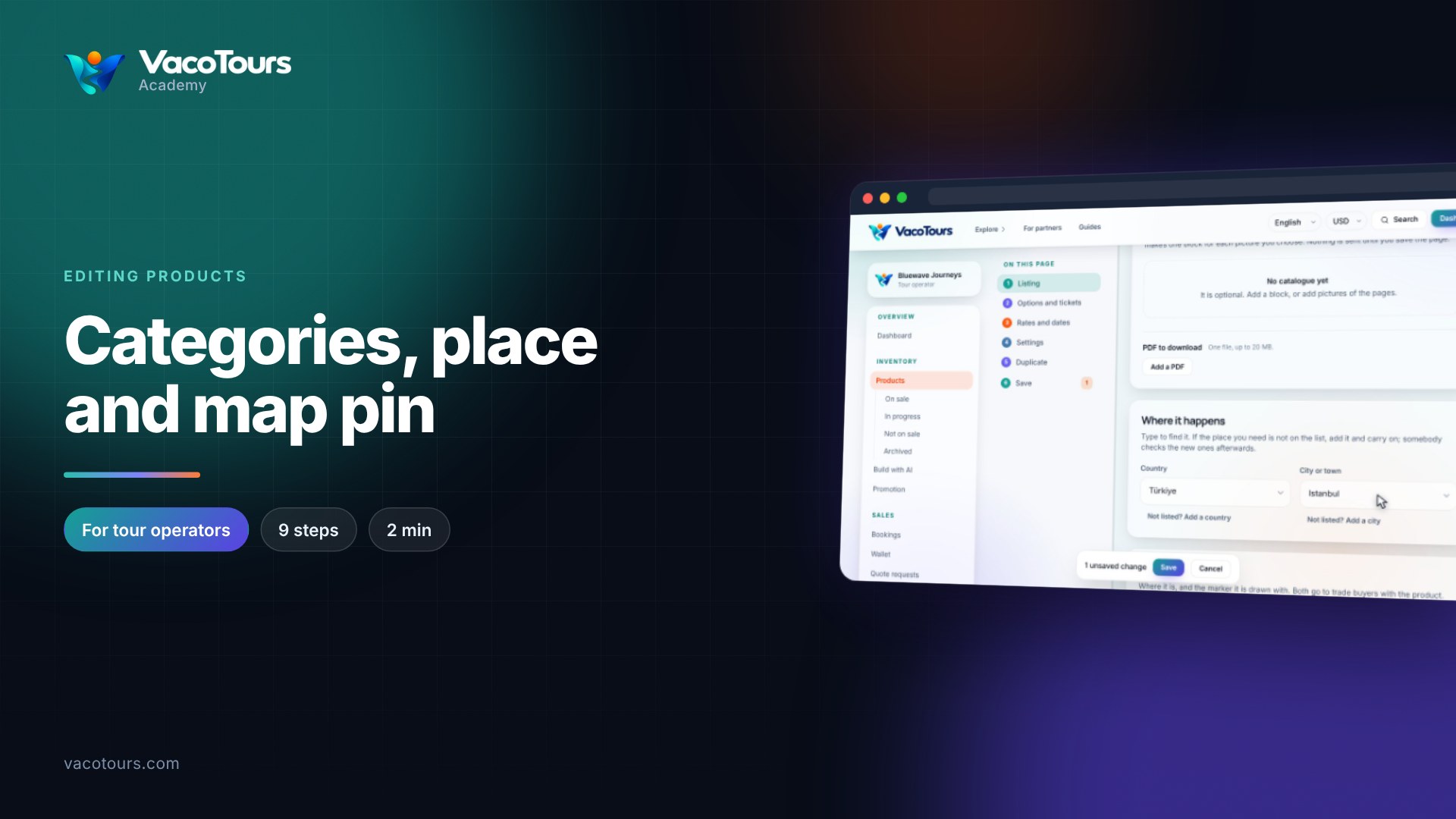
Categories, place and map pin
Choose a product's categories, country and city, and put its pin on the map, so travellers find it in the right searches.
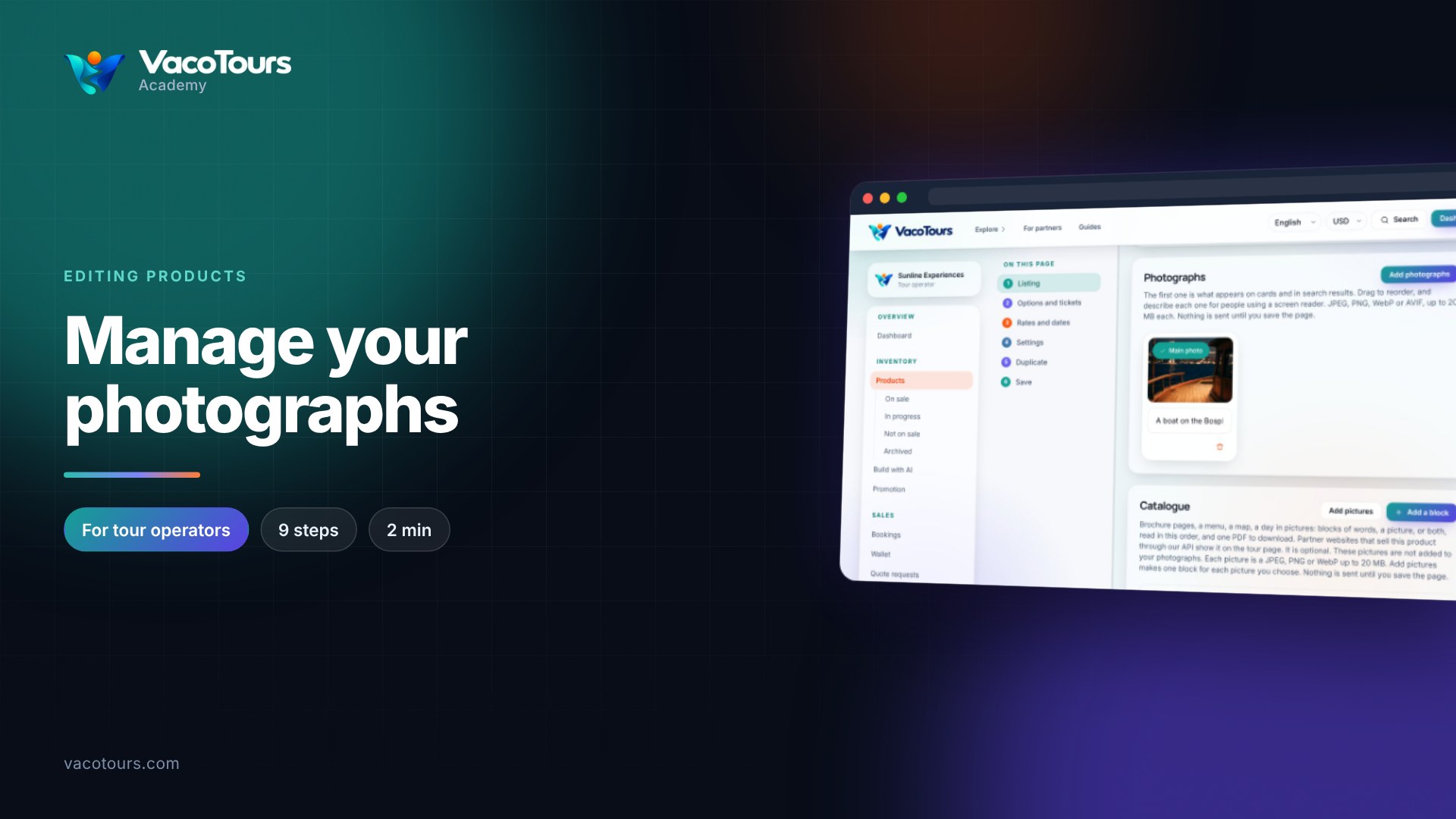
Manage your photographs
Add photographs to a product, describe them, choose the main one, and remove the ones you no longer want.
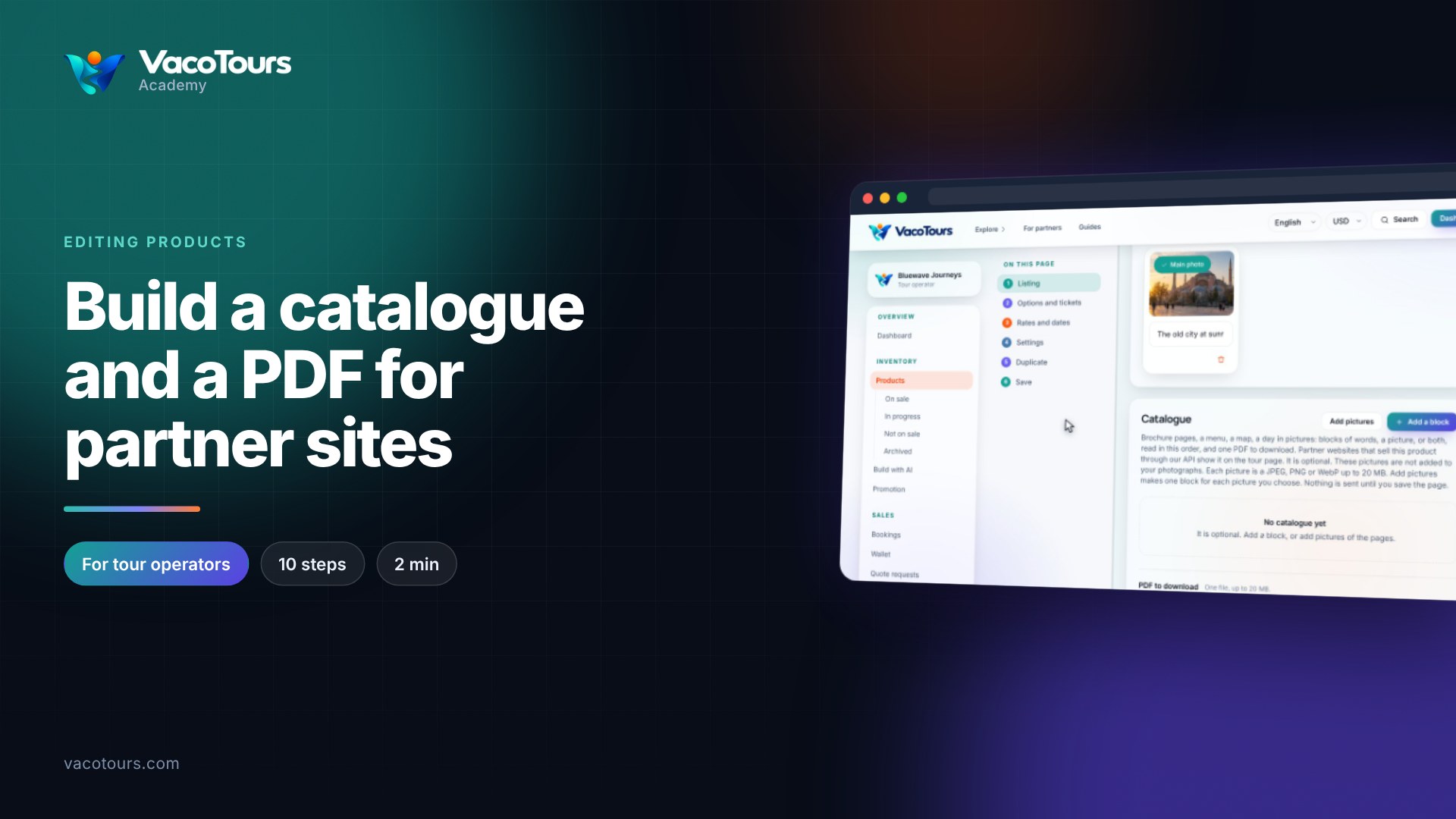
Build a catalogue and a PDF for partner sites
Build a product's catalogue from blocks of words and pictures, put them in order, and attach a PDF for partner sites.
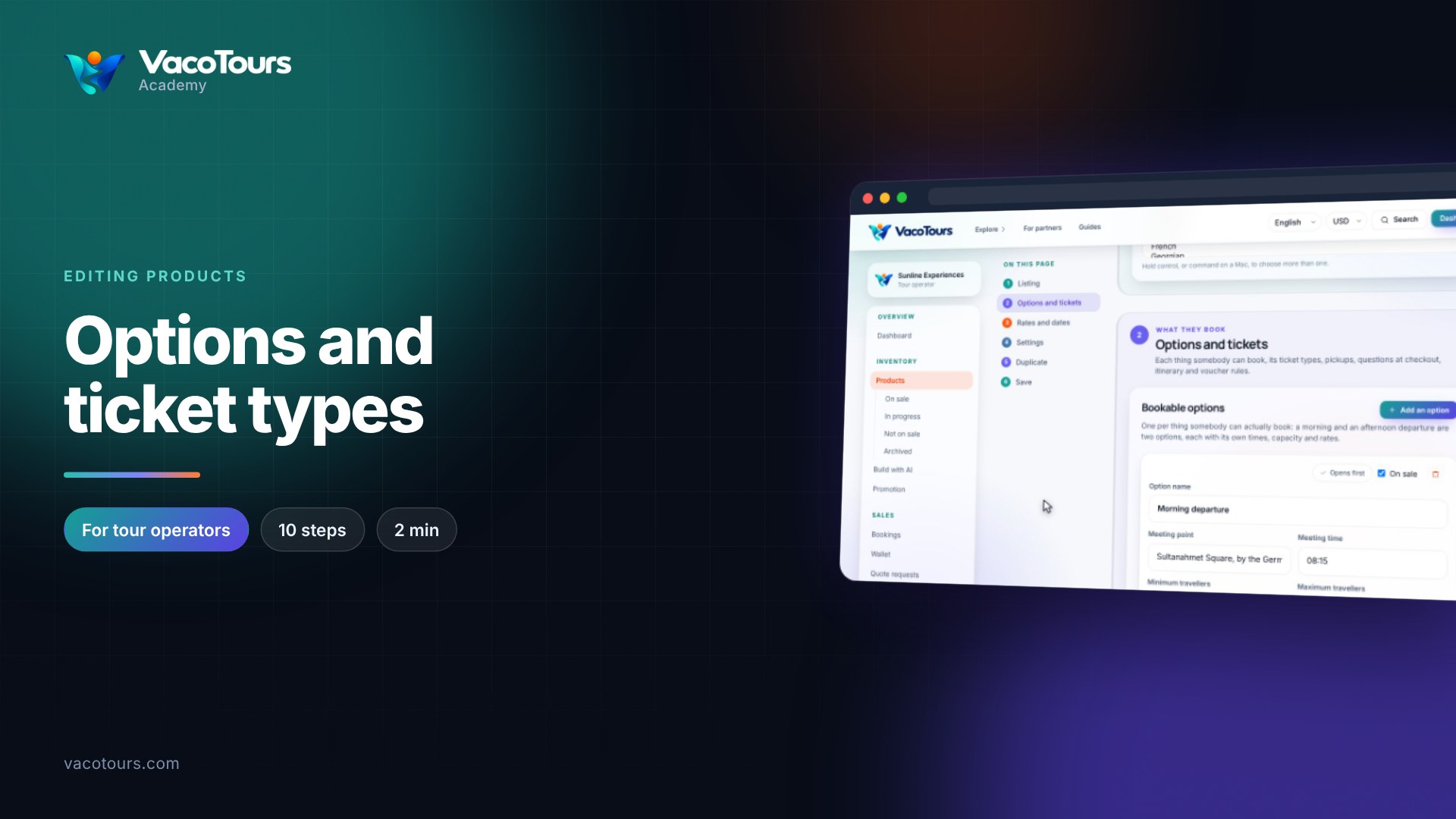
Options and ticket types
Understand a product's options and ticket types, from meeting time to capacity, and add a new ticket type such as senior.
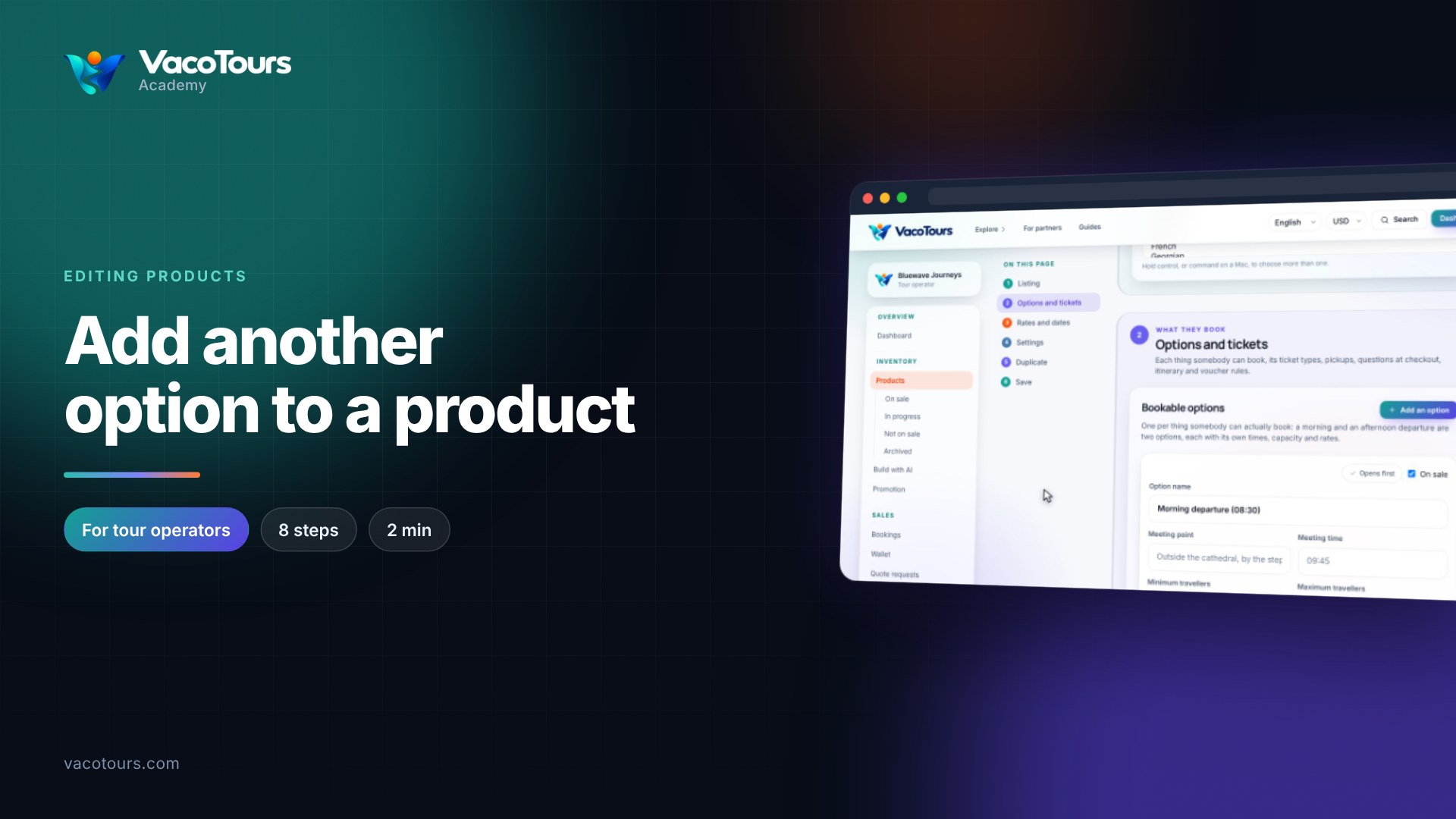
Add another option to a product
Add a second bookable option, such as an afternoon departure, that starts as a copy of the first, then price it.
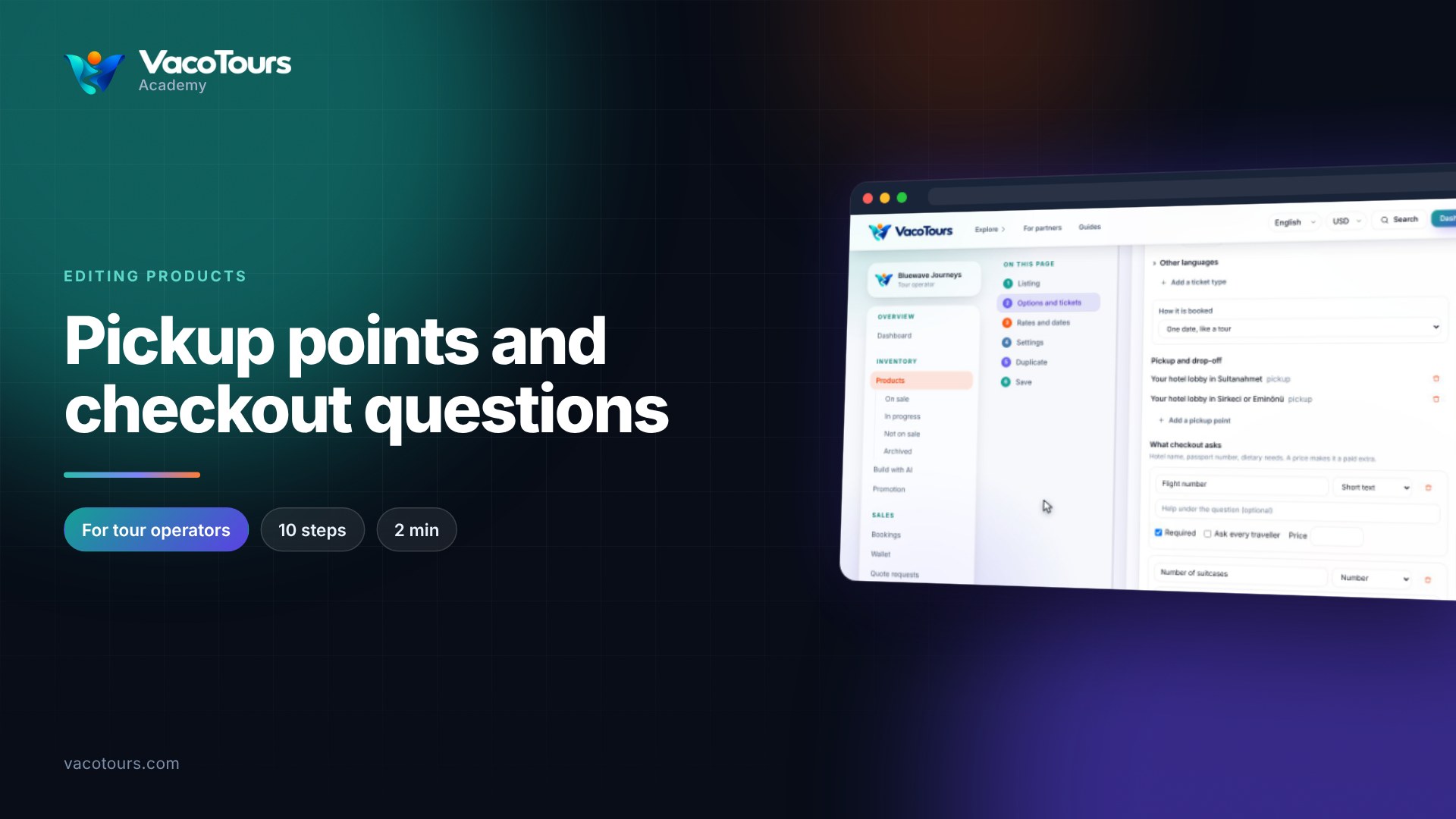
Pickup points and checkout questions
Add a pickup point with its time and extra charge, and a question travellers answer at checkout, on one option.
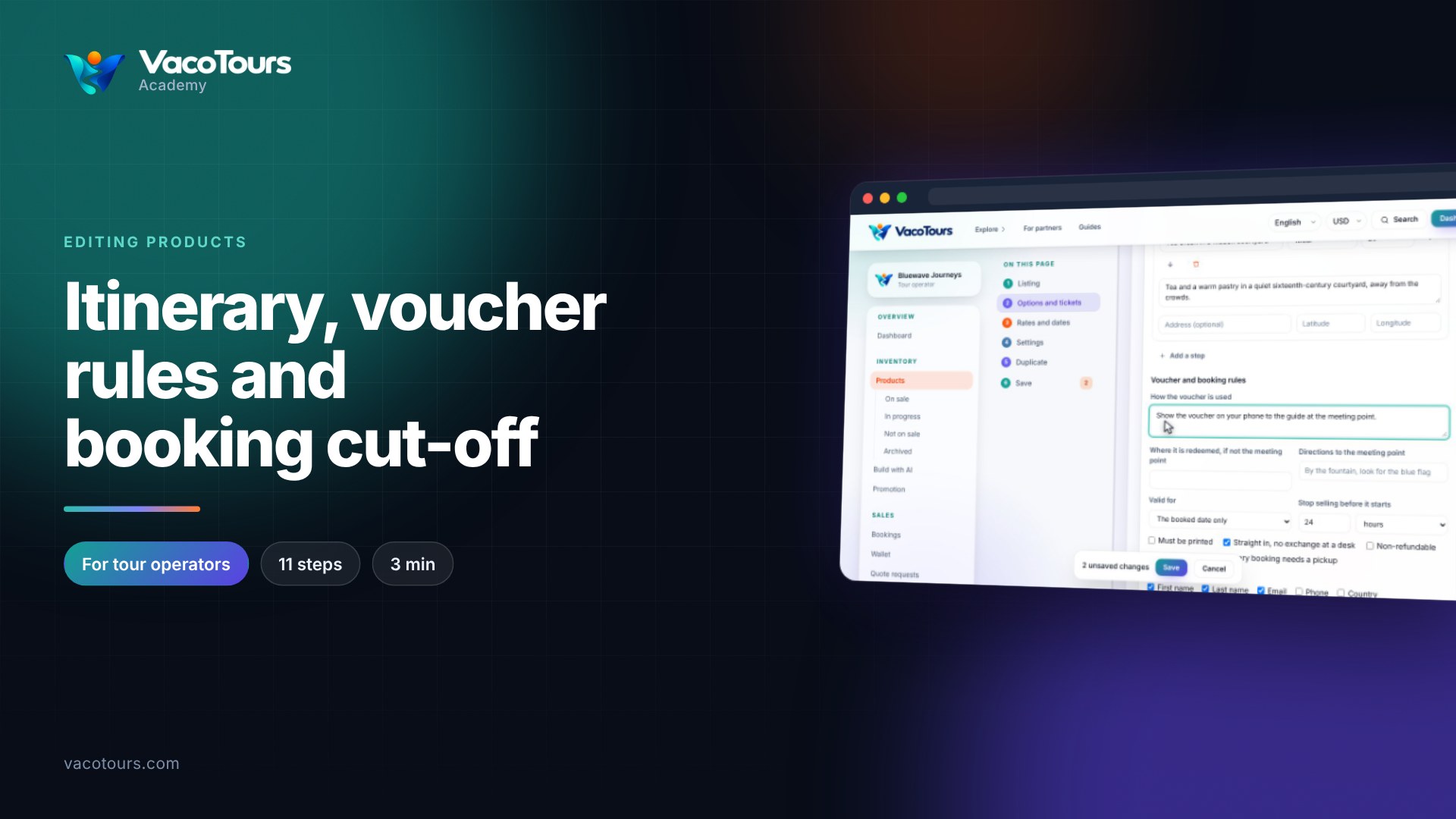
Itinerary, voucher rules and booking cut-off
Add itinerary stops to an option, say how its voucher is used, and set when it stops selling before the start.
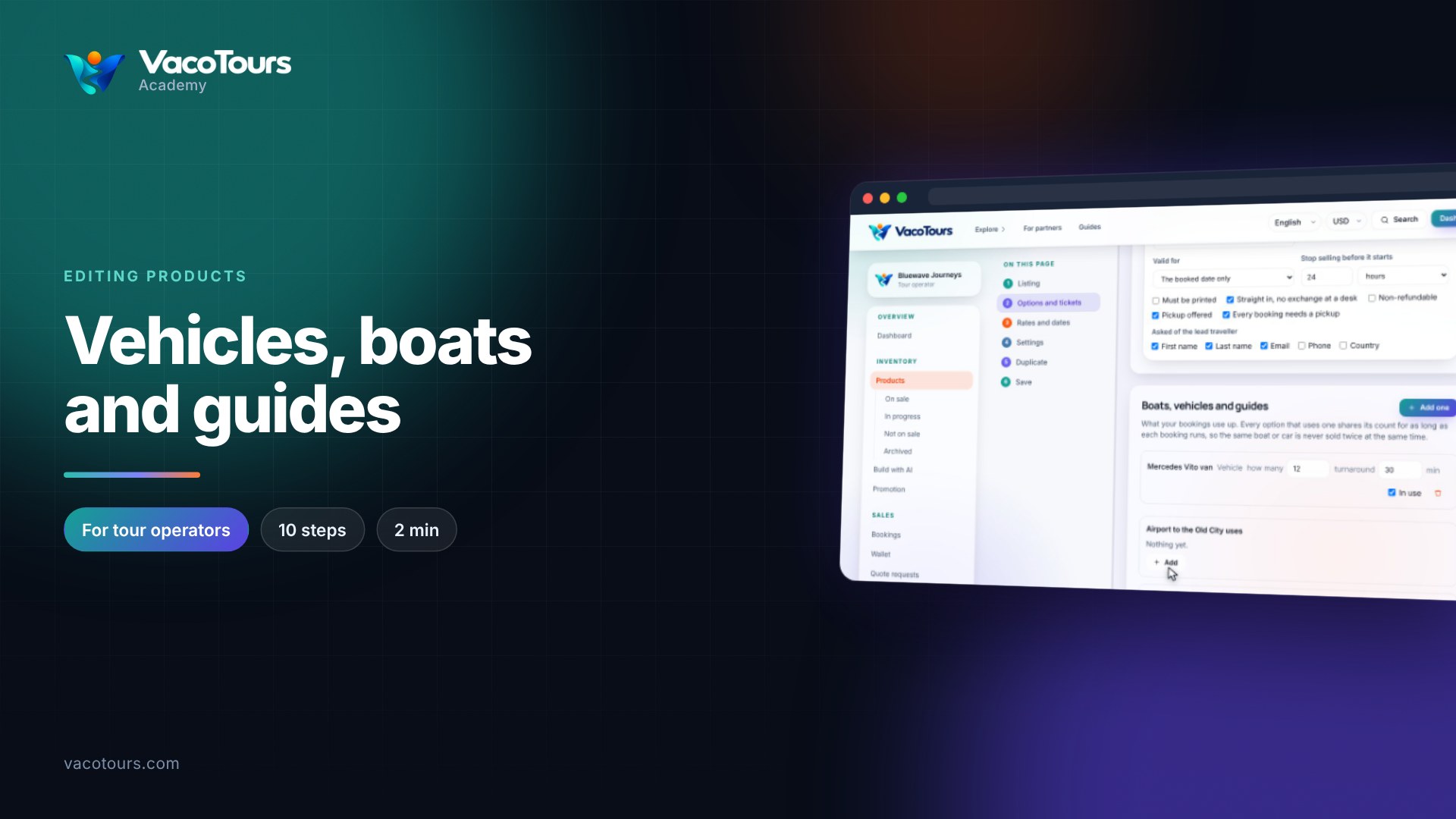
Vehicles, boats and guides
Add the vans, boats or guides your bookings use, so a time stops selling once all of them are taken.
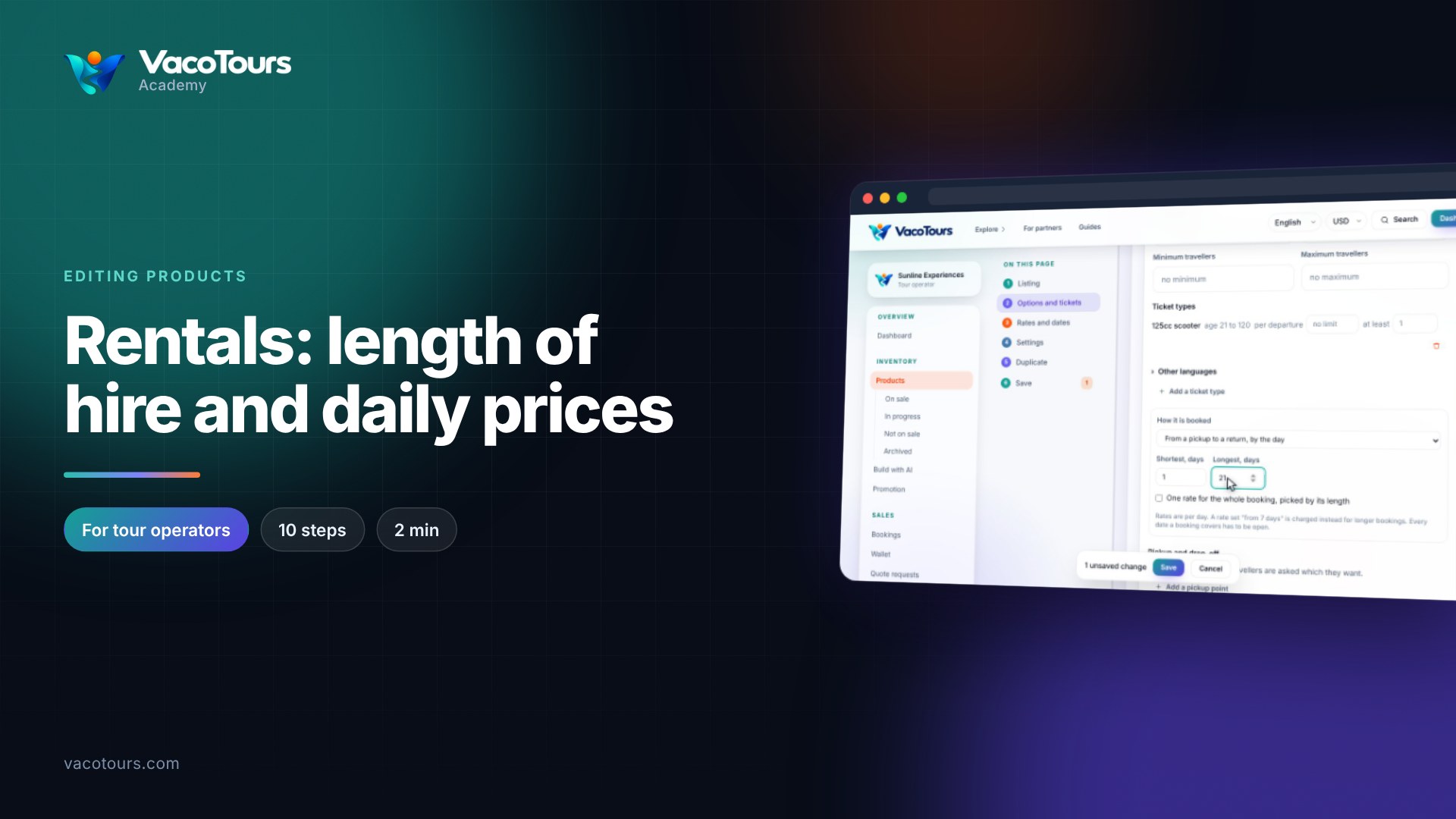
Rentals: length of hire and daily prices
Set how long a rental can be hired, check its rental terms, and make long hires cheaper per day with a rule.
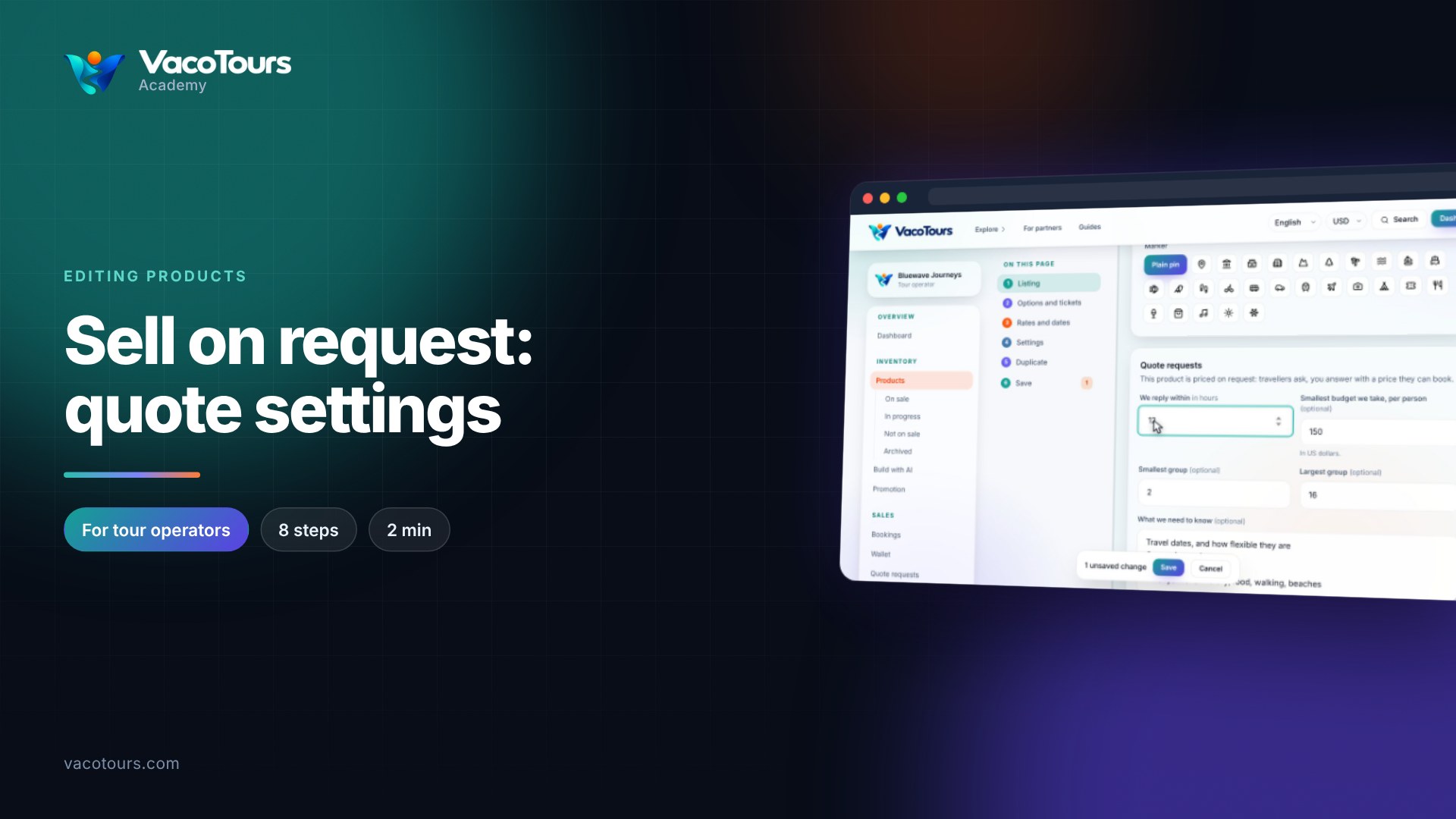
Sell on request: quote settings
Set how a product priced on request is asked for: your reply time, budget, group sizes and what you need to know.
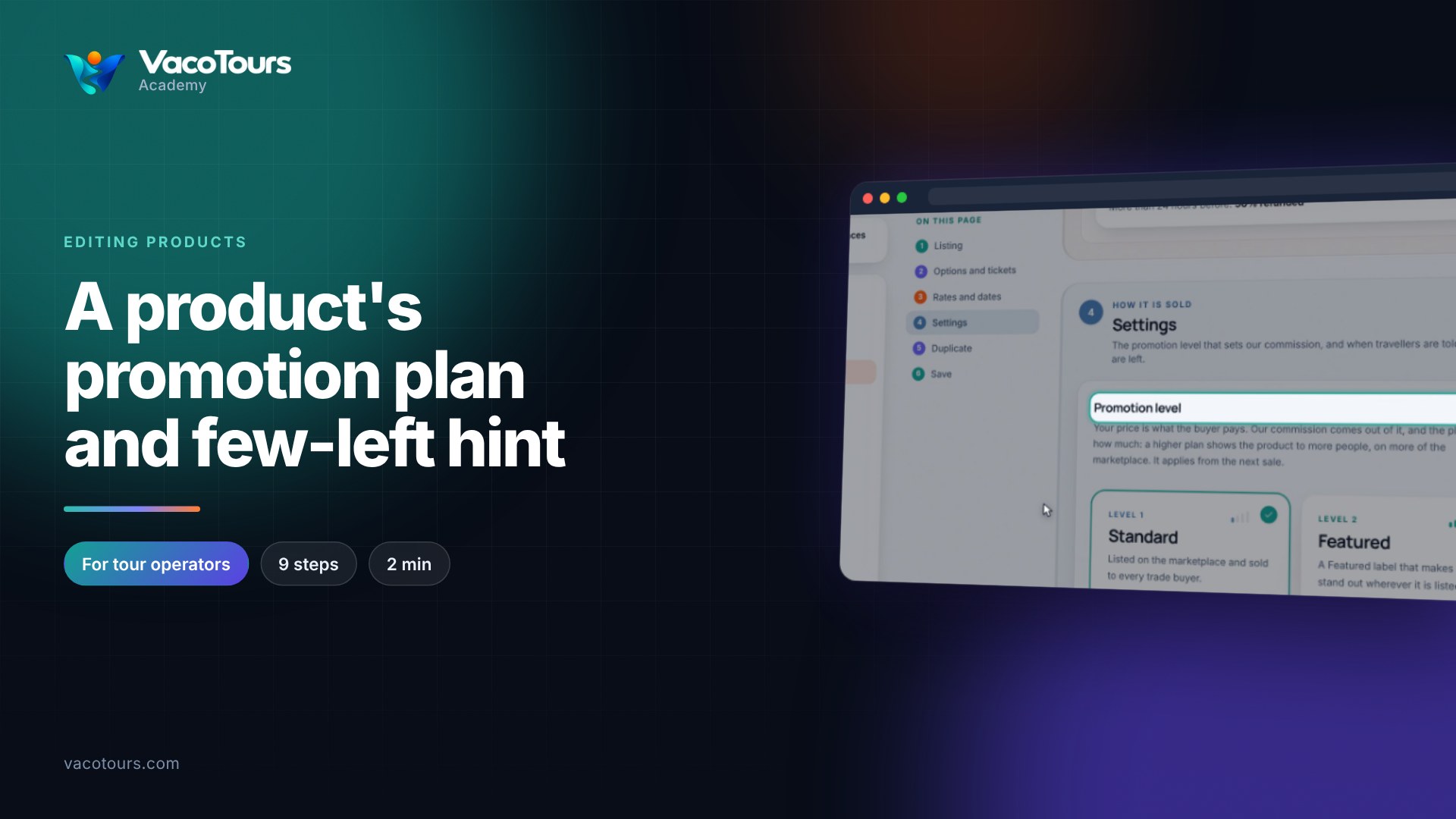
A product's promotion plan and few-left hint
Choose a product's promotion plan, and decide when travellers are told that only a few places are left.
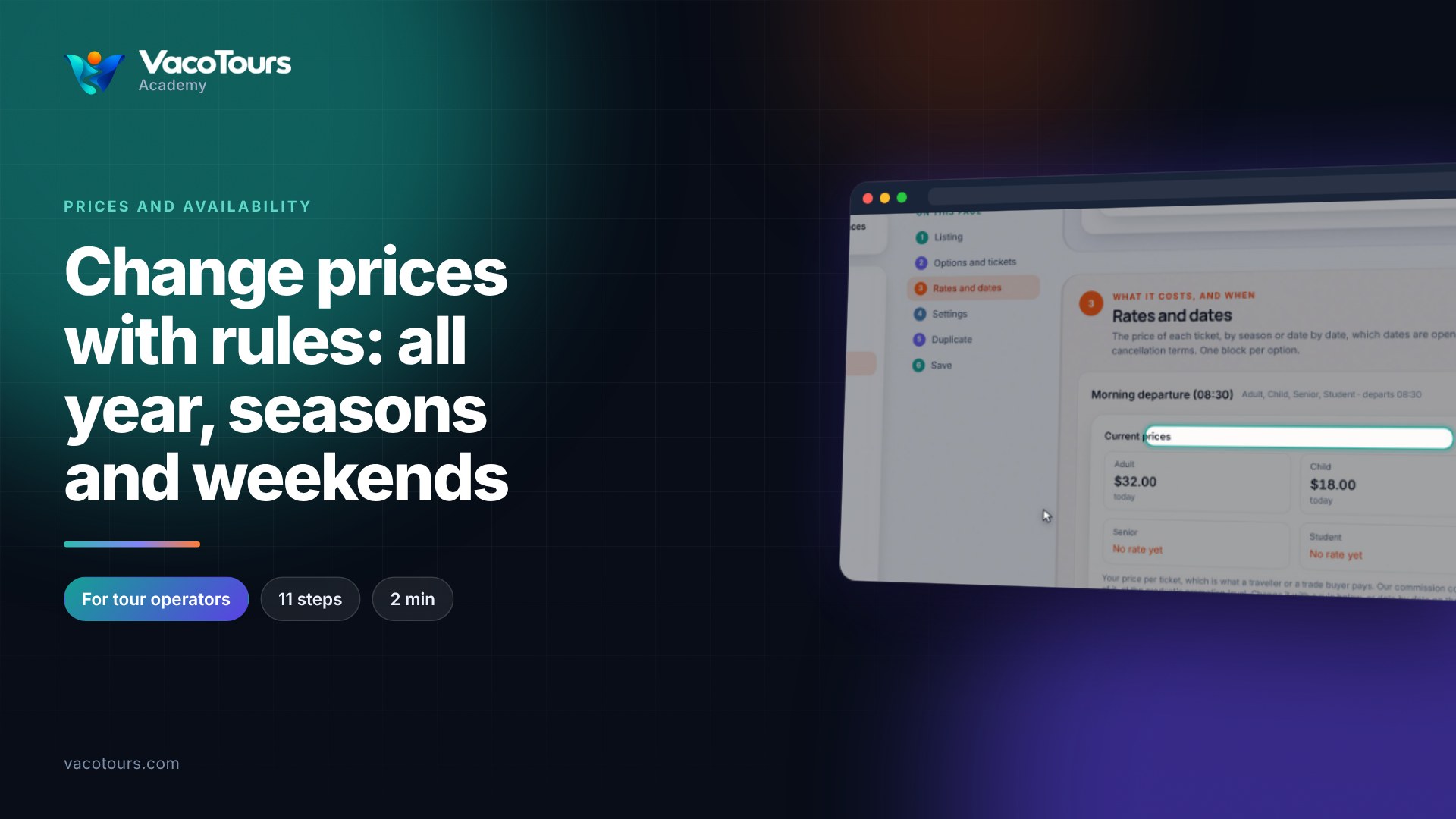
Change prices with rules: all year, seasons and weekends
Set prices for the whole year, a high season and weekends with a few rules, instead of pricing date by date.
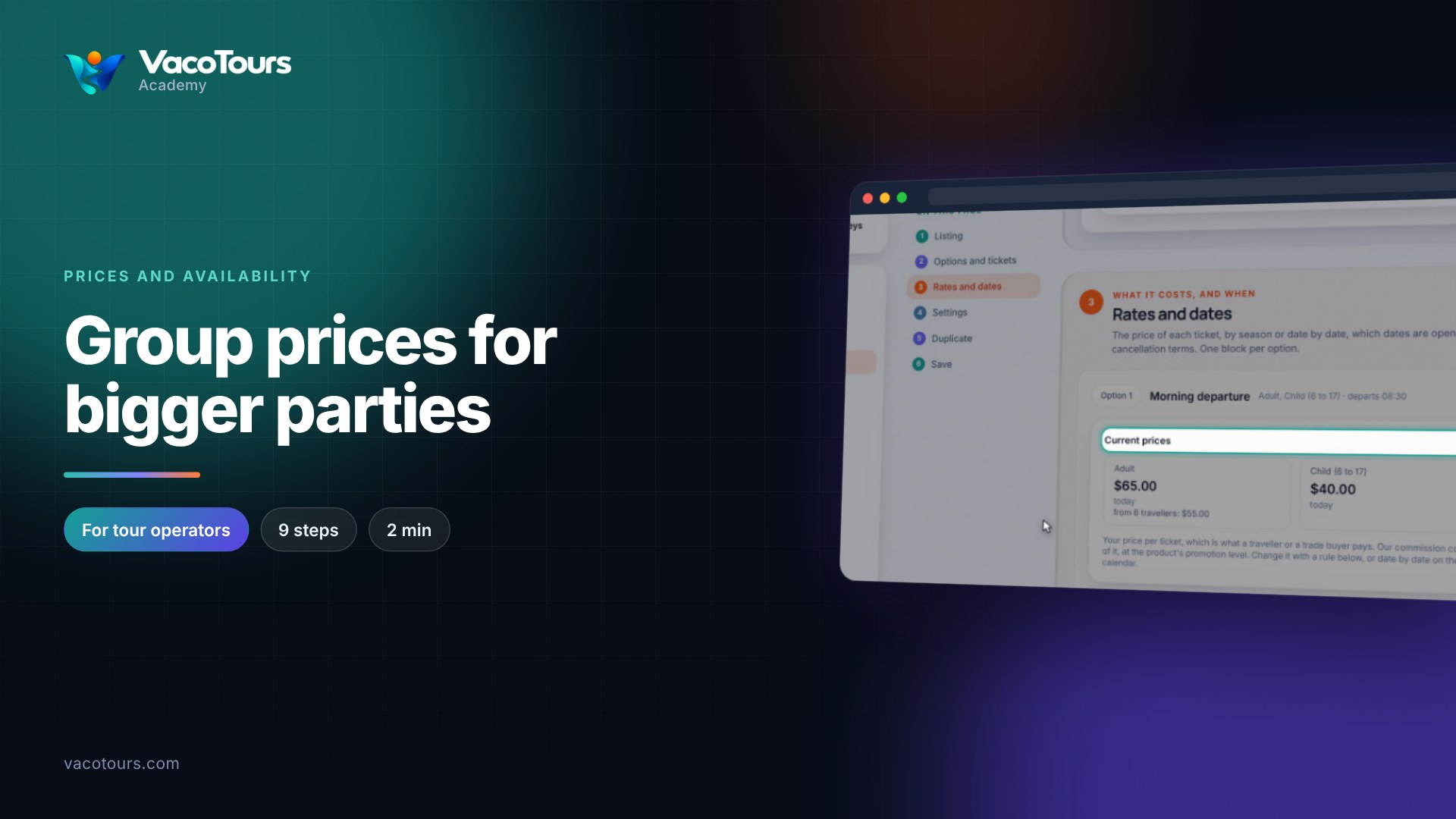
Group prices for bigger parties
Give bigger parties a lower price each, in steps by group size, and see how it shows in your current prices.
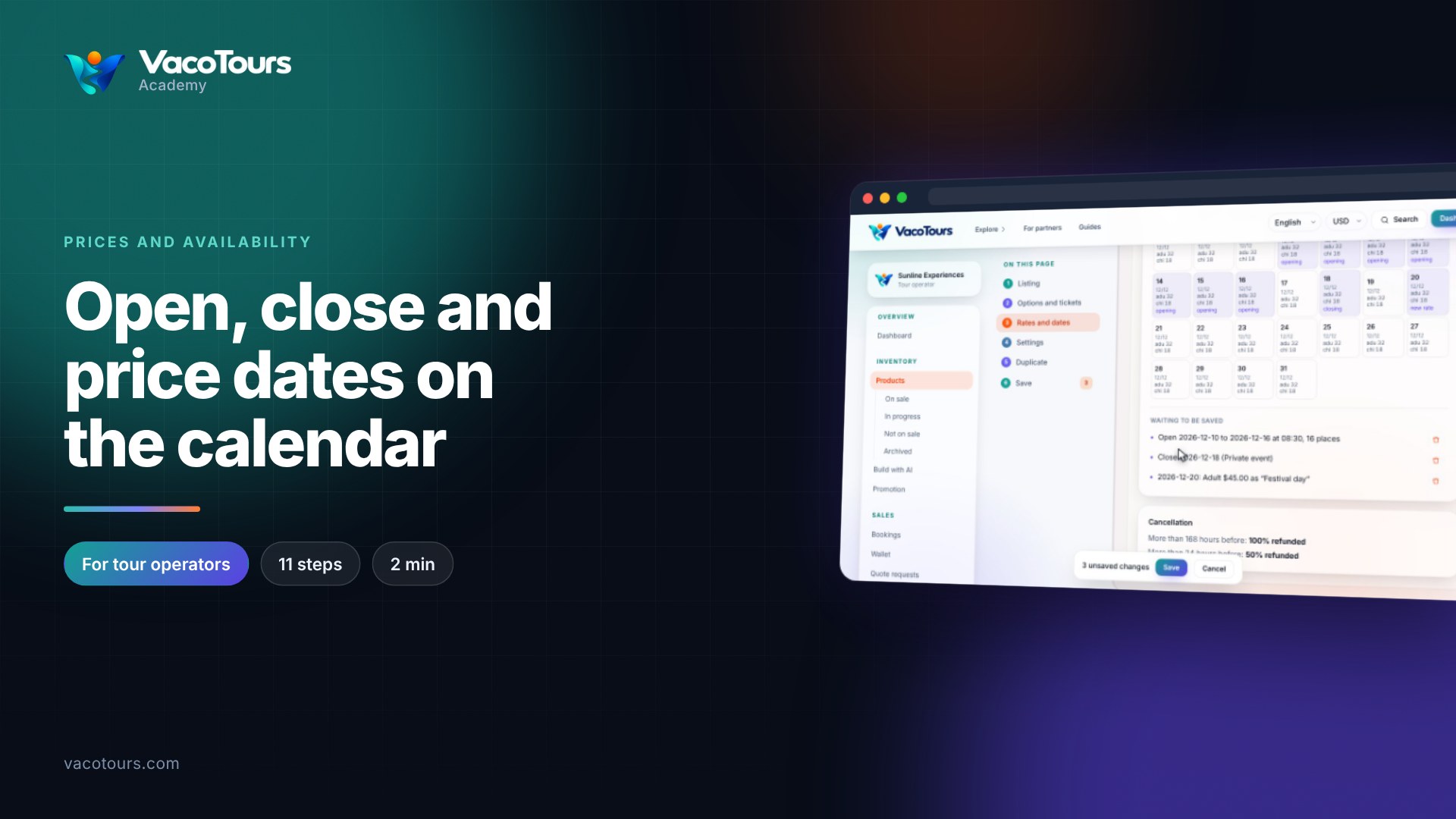
Open, close and price dates on the calendar
Open, close and price single dates or ranges on a product's calendar, then save them together.
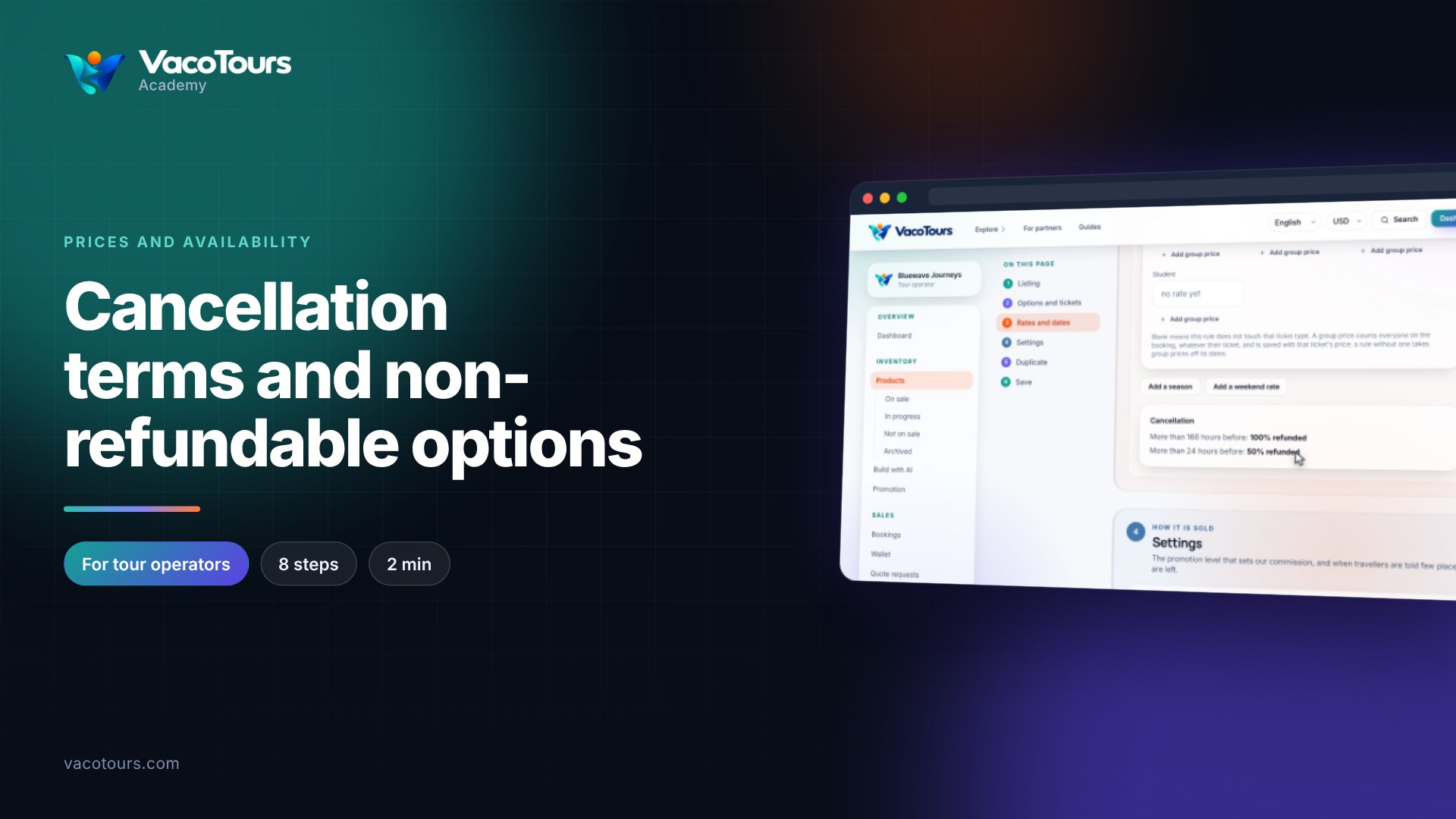
Cancellation terms and non-refundable options
Read a product's cancellation ladder, see what the Non-refundable box changes, and know which terms a booking keeps.
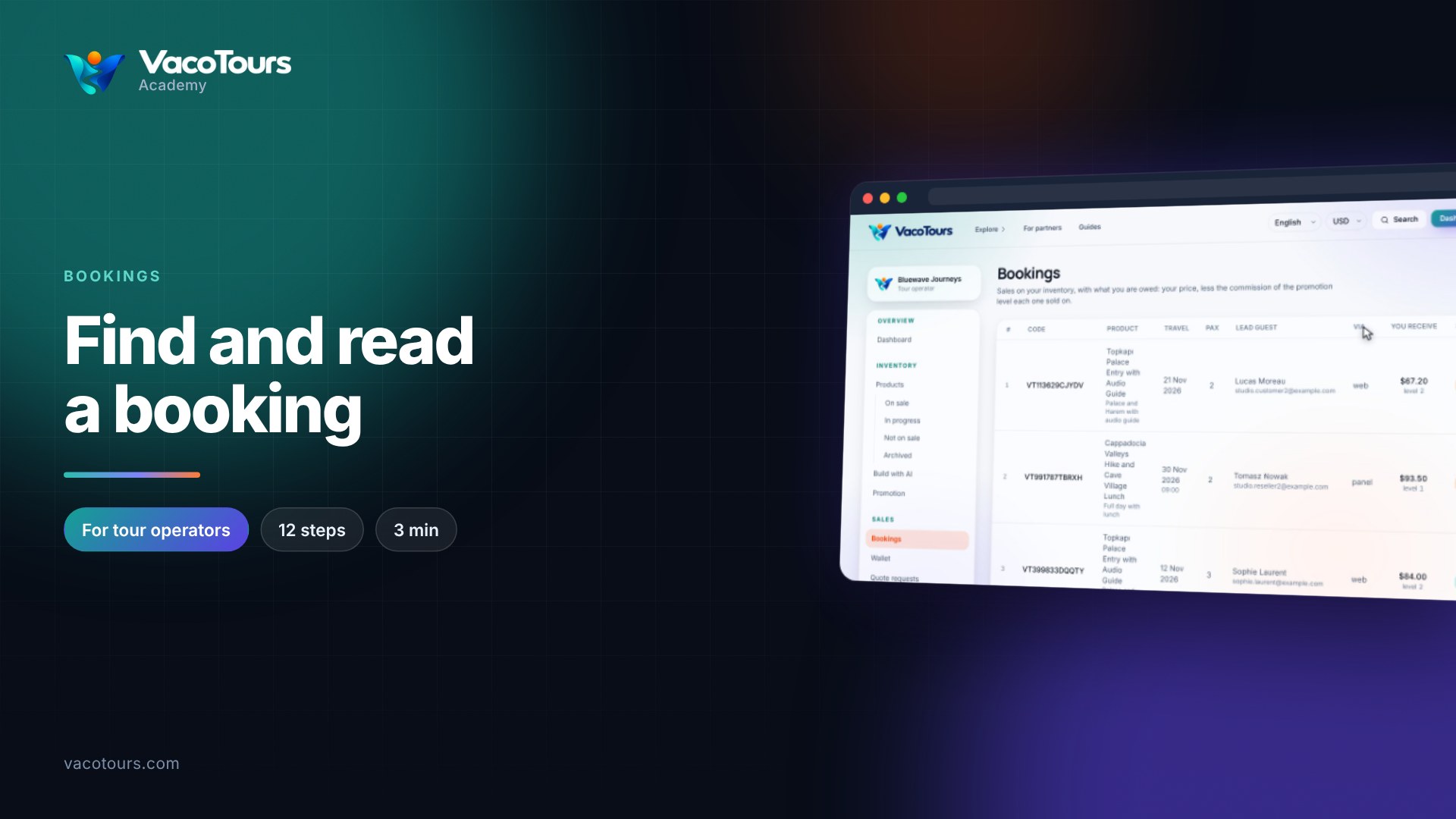
Find and read a booking
Read your bookings list, then open a booking to see its option, travellers, your share and what you need on the day.
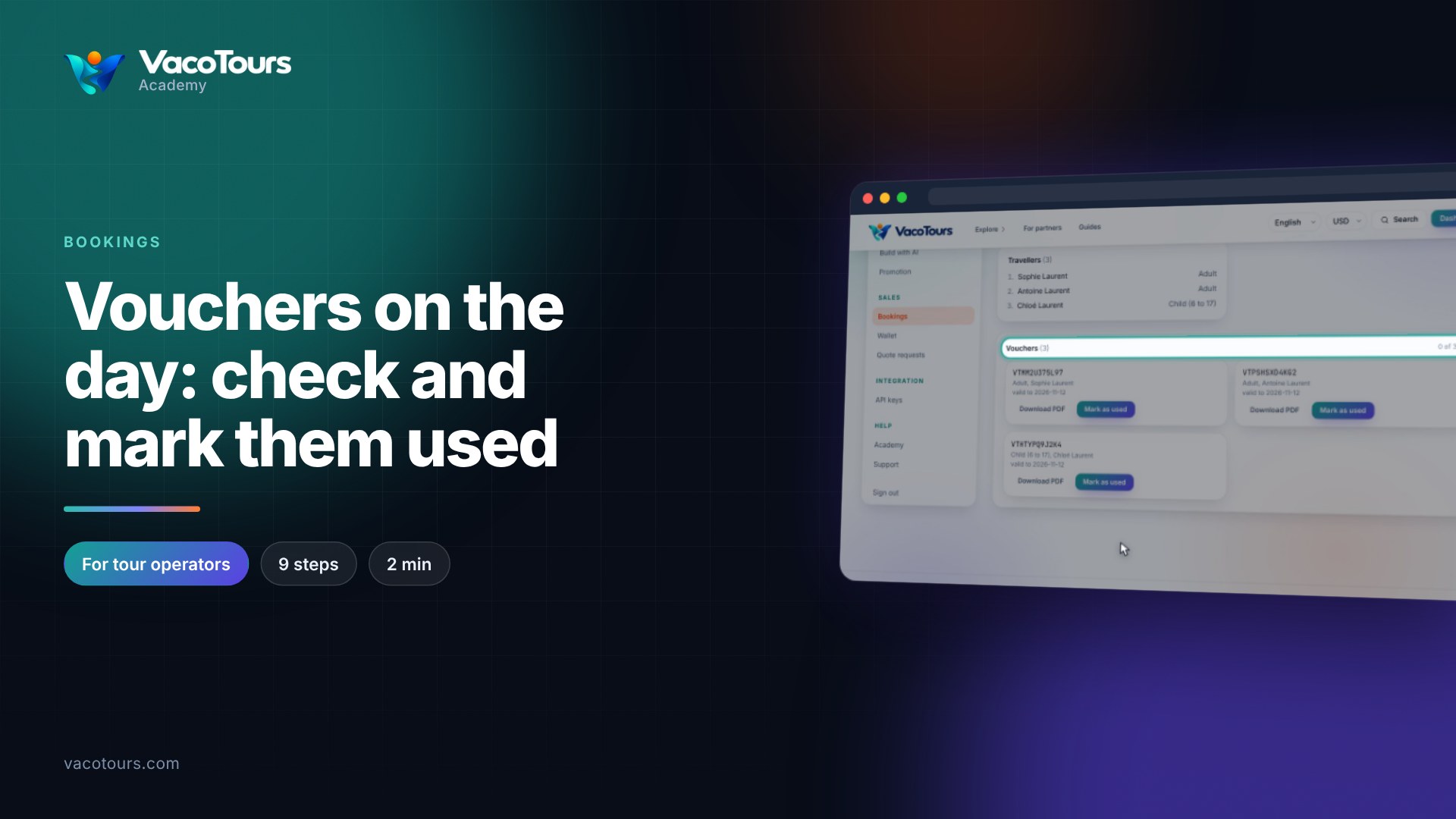
Vouchers on the day: check and mark them used
On the day, check each guest's voucher, mark it as used, put a mistake right with Undo, and print a voucher when needed.
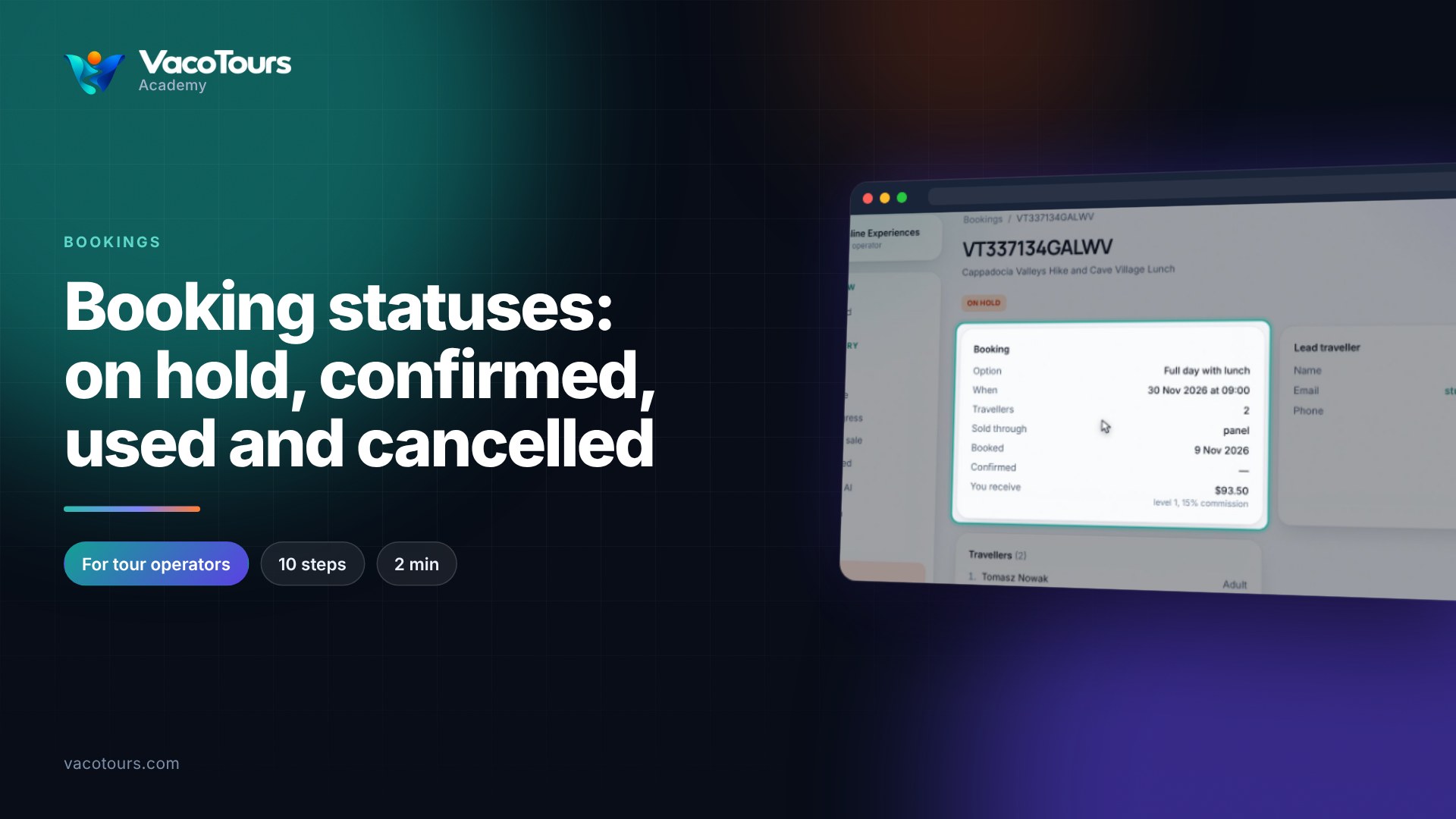
Booking statuses: on hold, confirmed, used and cancelled
What on hold, confirmed, redeemed and cancelled mean for a booking, and where to go when a booking needs to change.
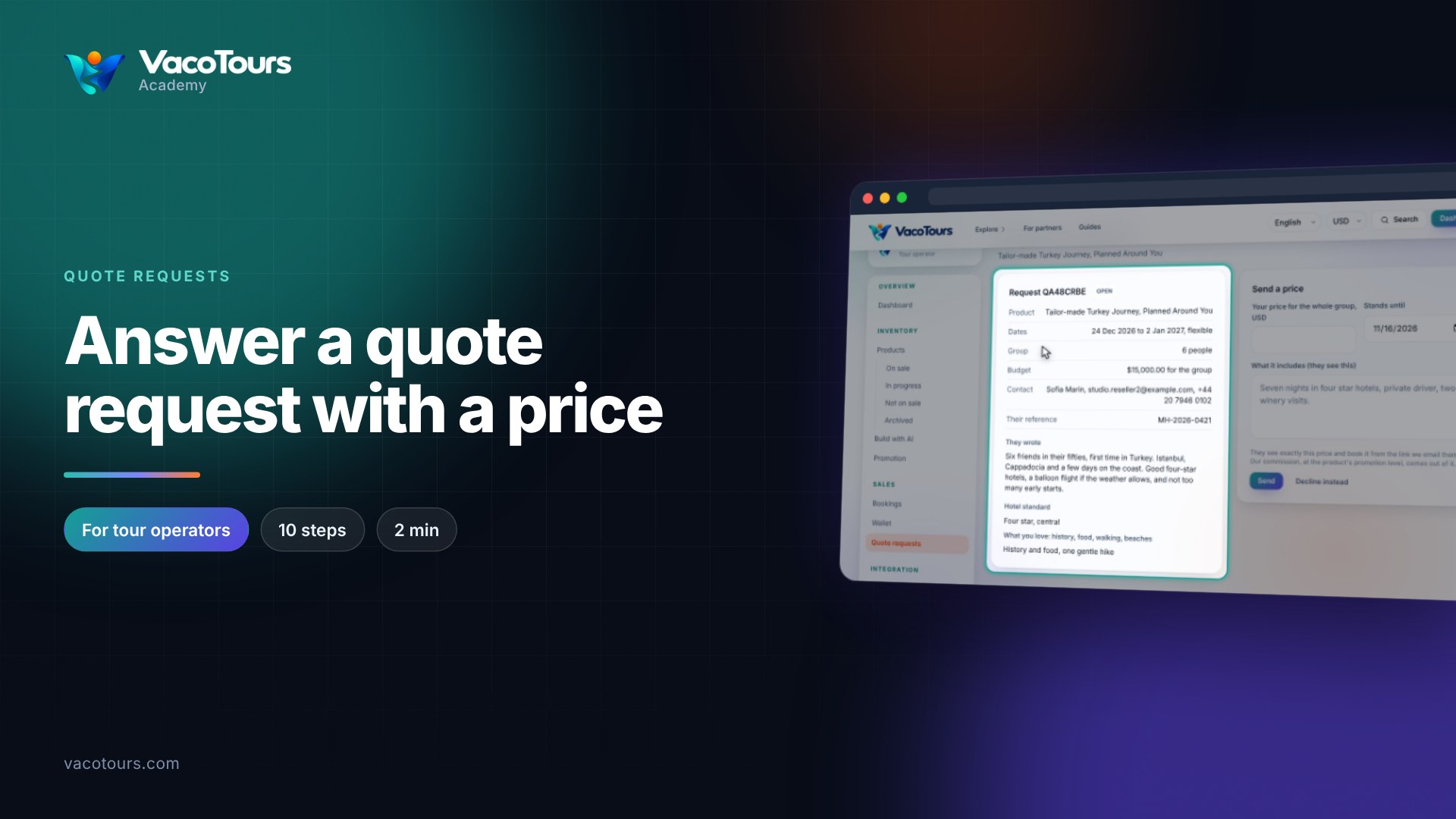
Answer a quote request with a price
Read a request for a price, then send one price for the whole group with what it includes and how long it stands.
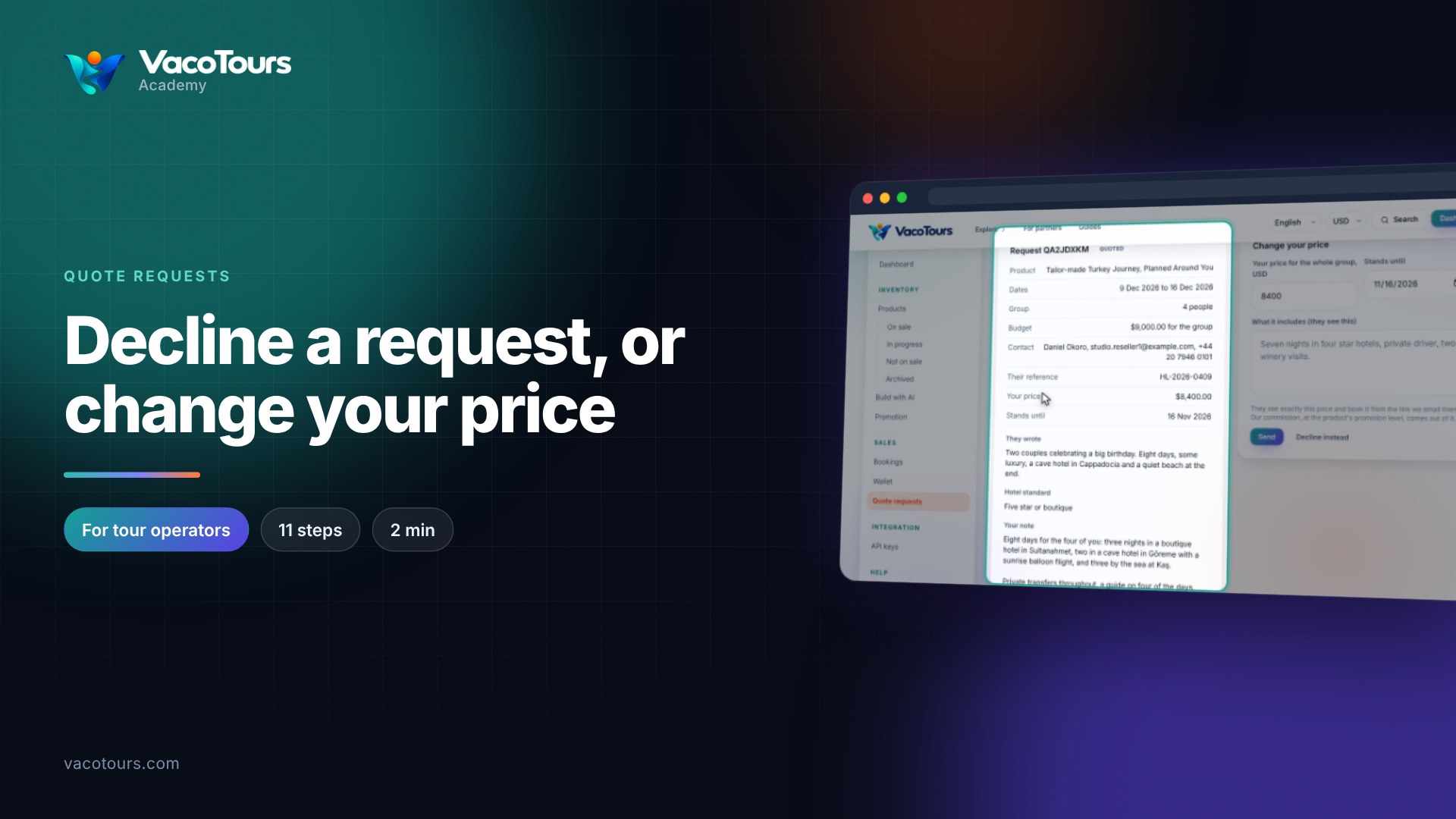
Decline a request, or change your price
Change a price you have already sent, or decline a request politely with a reason the buyer sees.
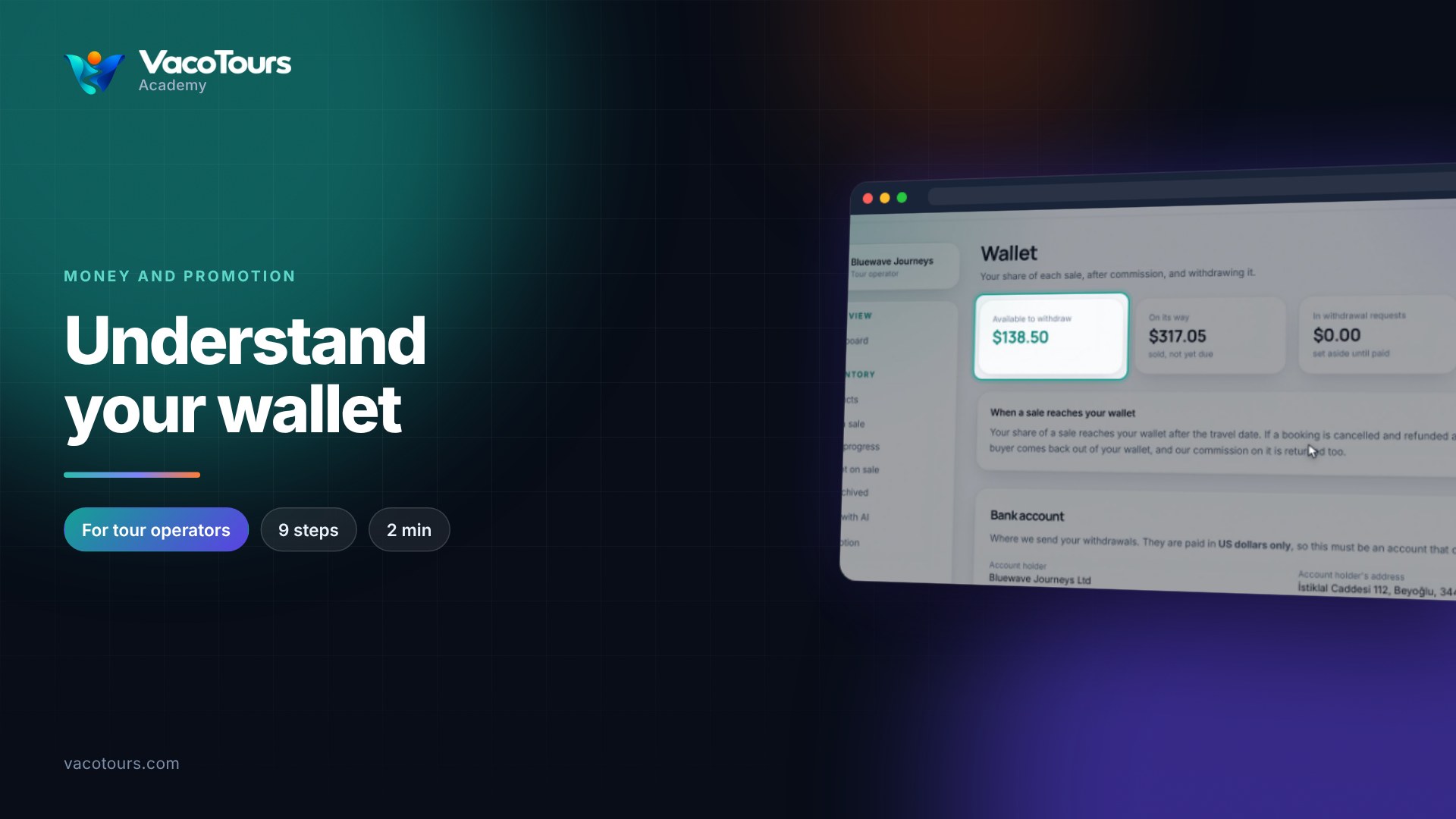
Understand your wallet
Read your wallet: what you can withdraw, what is on its way, when a sale reaches you, and every line of your statement.
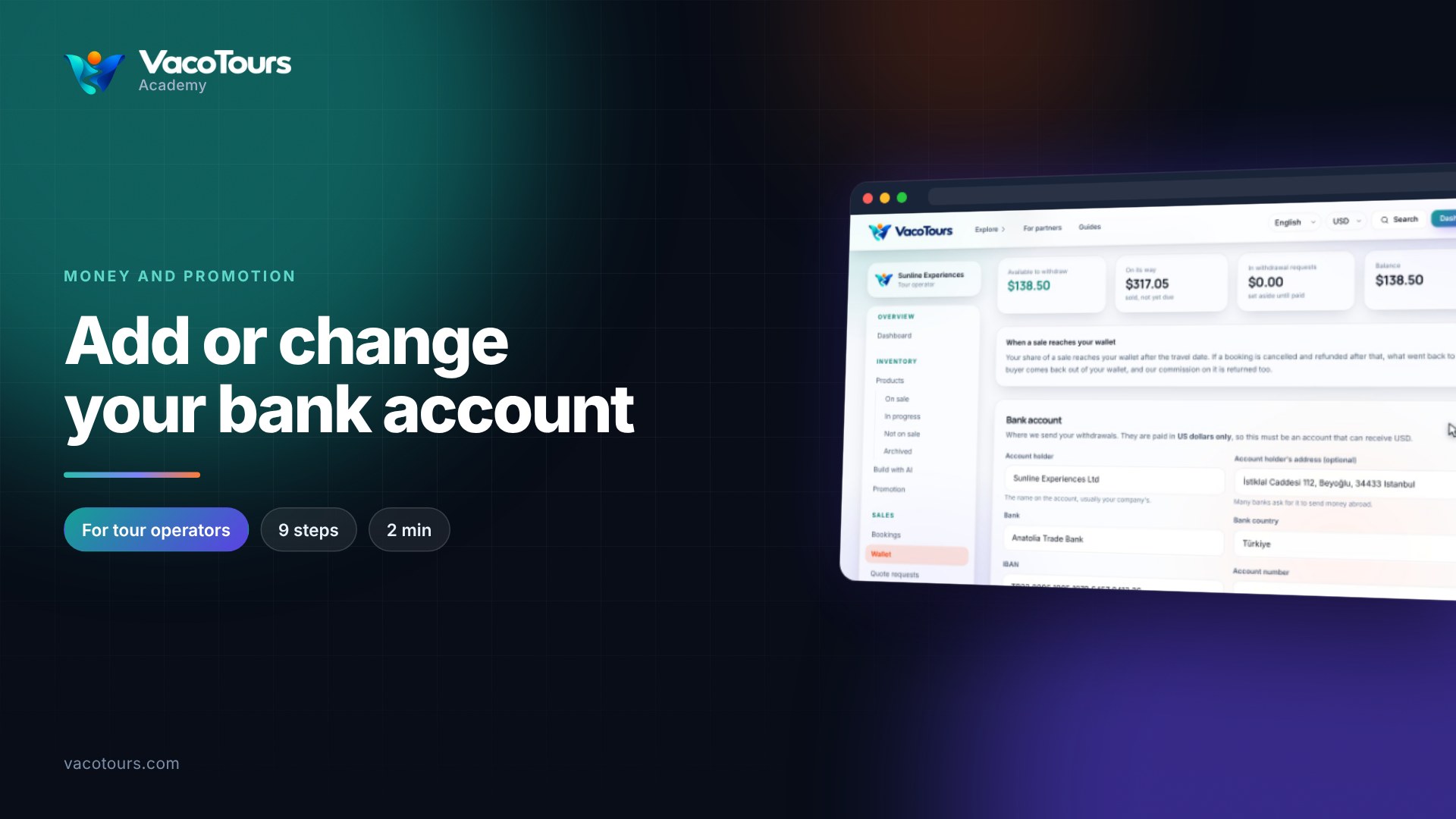
Add or change your bank account
Add or change the bank account your withdrawals are paid to, what each field needs, and how the change is protected.
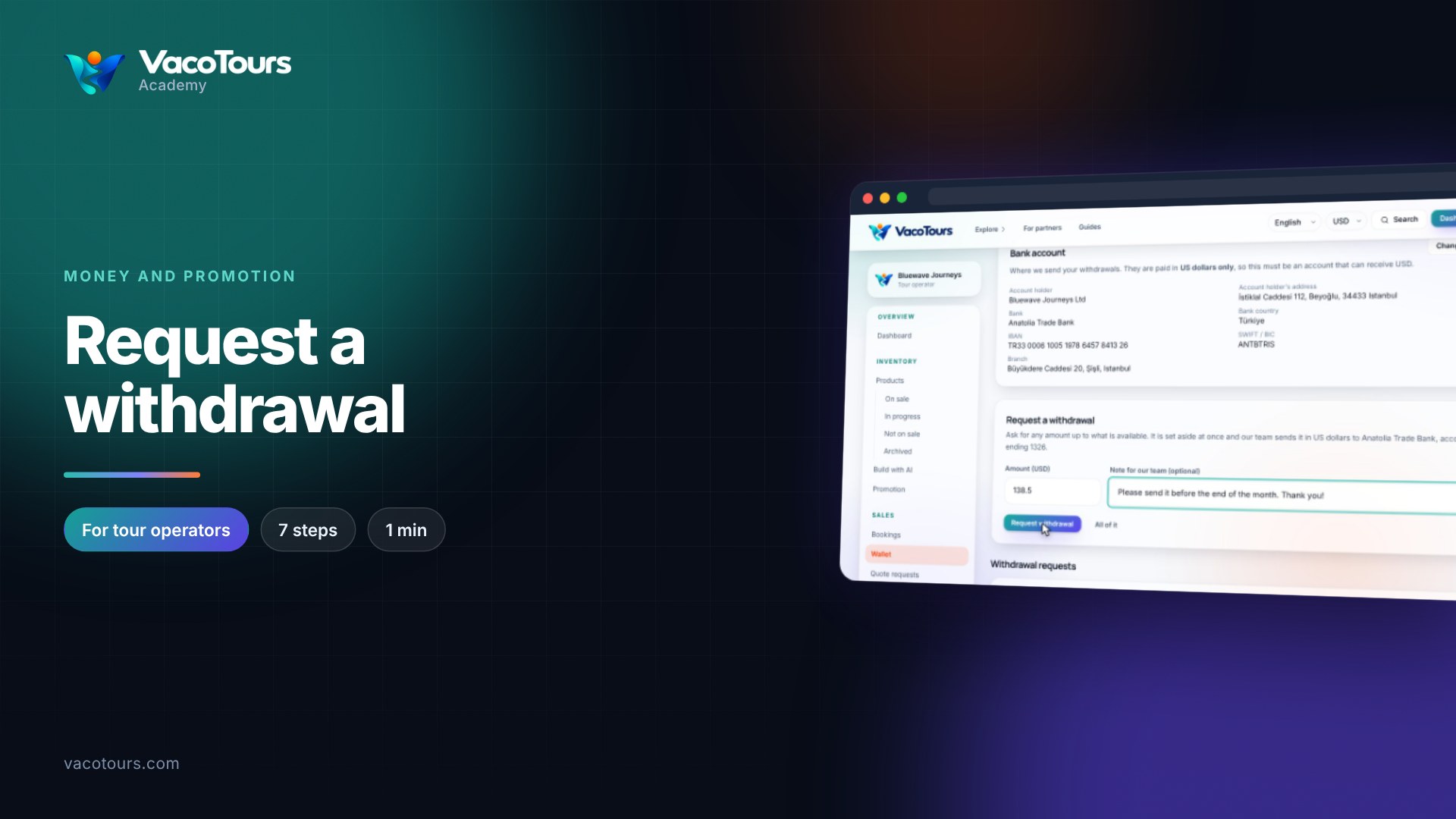
Request a withdrawal
Ask for money in your wallet to be paid to your bank: choose an amount, add a note, and follow the request until it is paid.
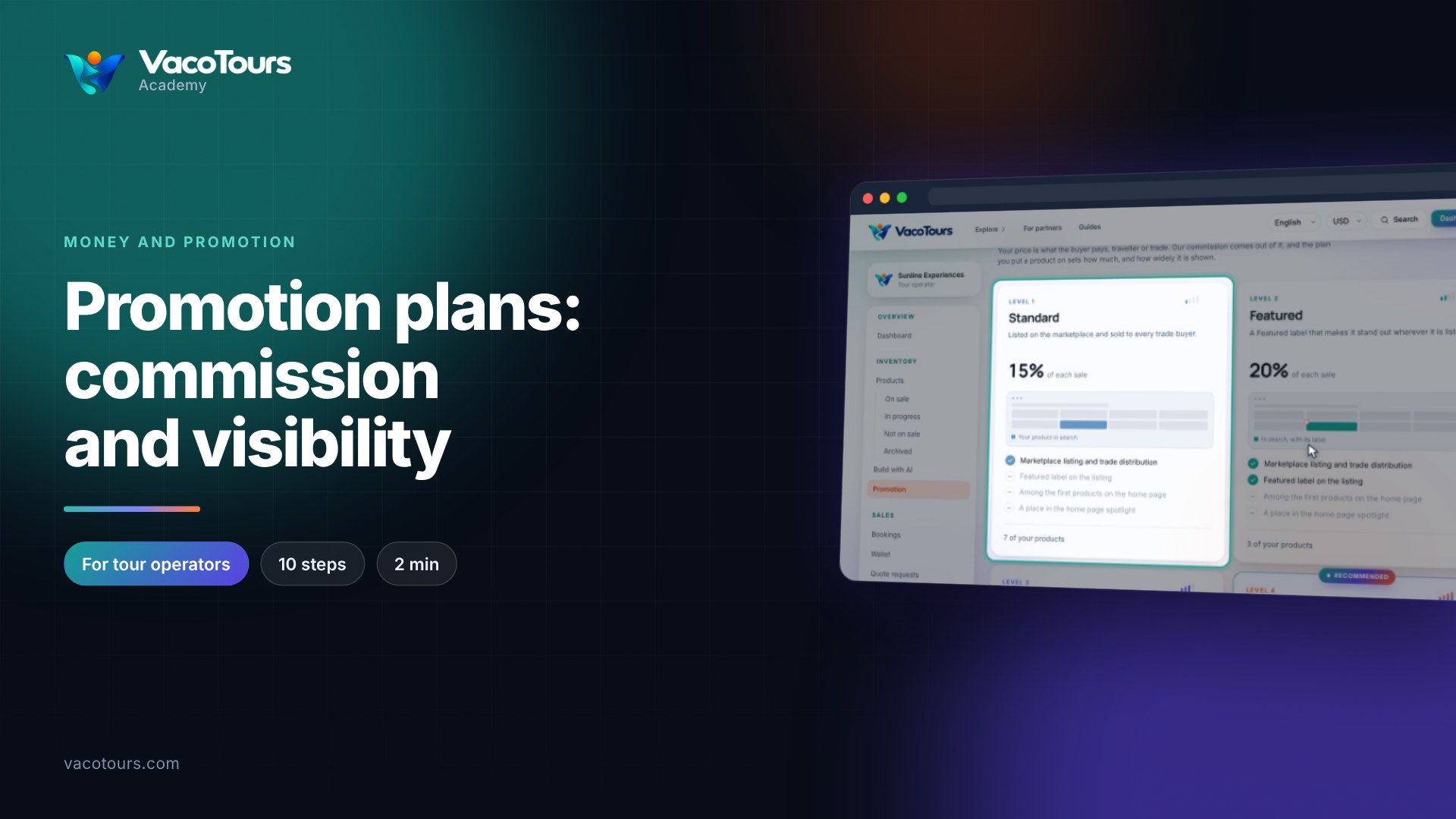
Promotion plans: commission and visibility
Choose a promotion plan for each product: what Standard, Featured, Showcase and Spotlight give you, and what each one costs.
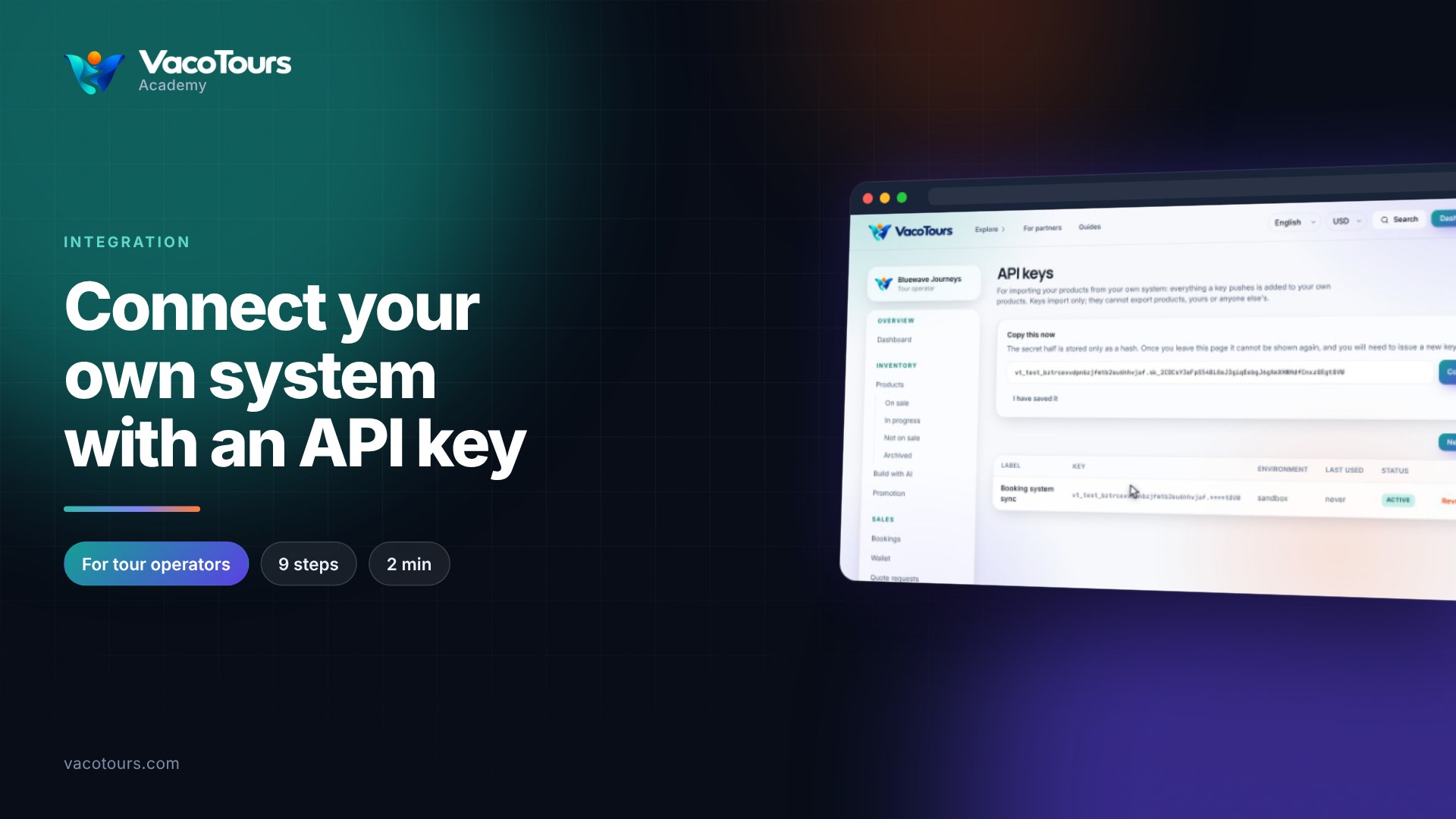
Connect your own system with an API key
Issue an API key so your own booking system can import products, availability and prices, keep its secret safe, and revoke it.
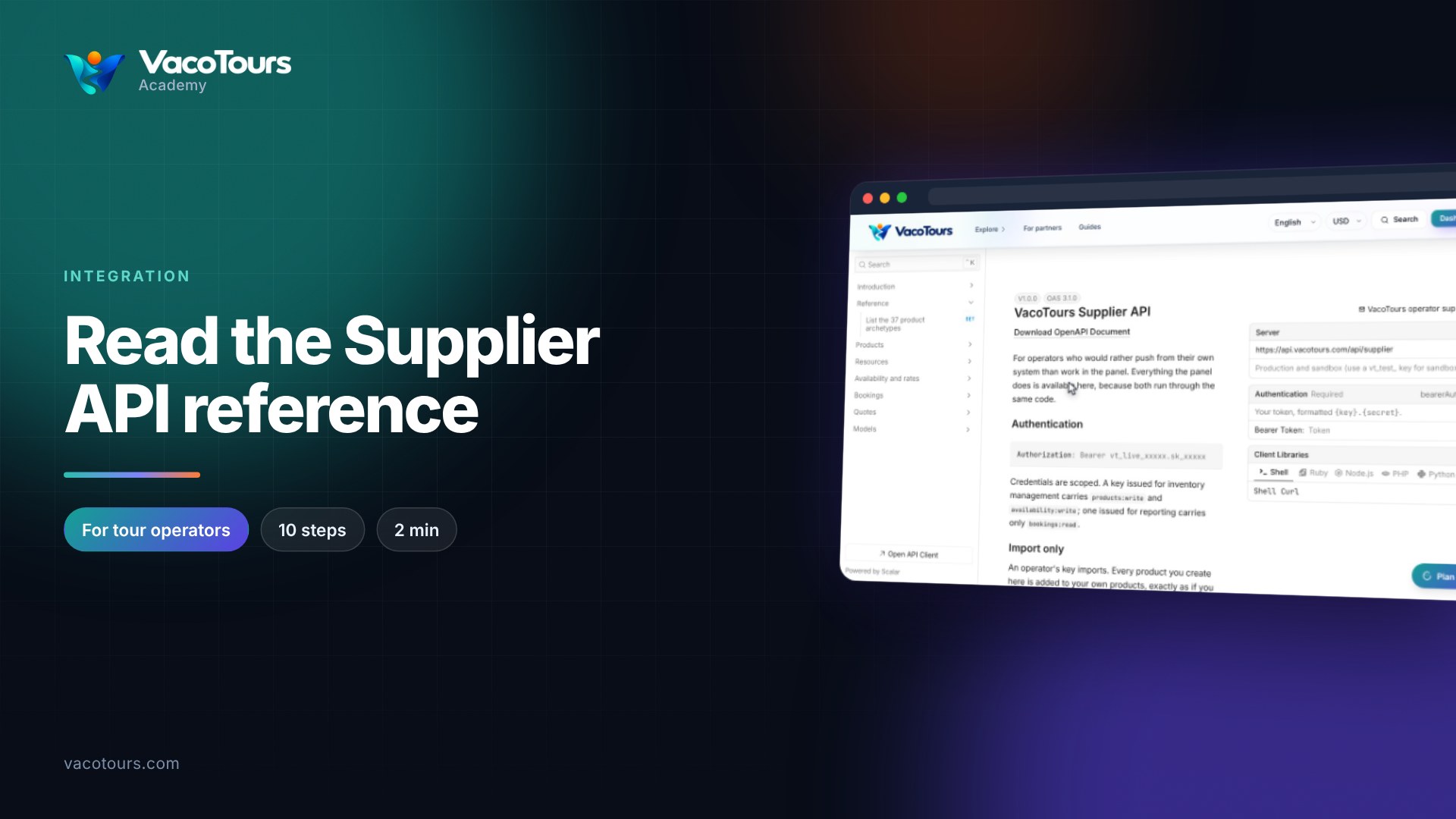
Read the Supplier API reference
A tour of the Supplier API reference: what your own system can do, how a request is authenticated, and where everything is.
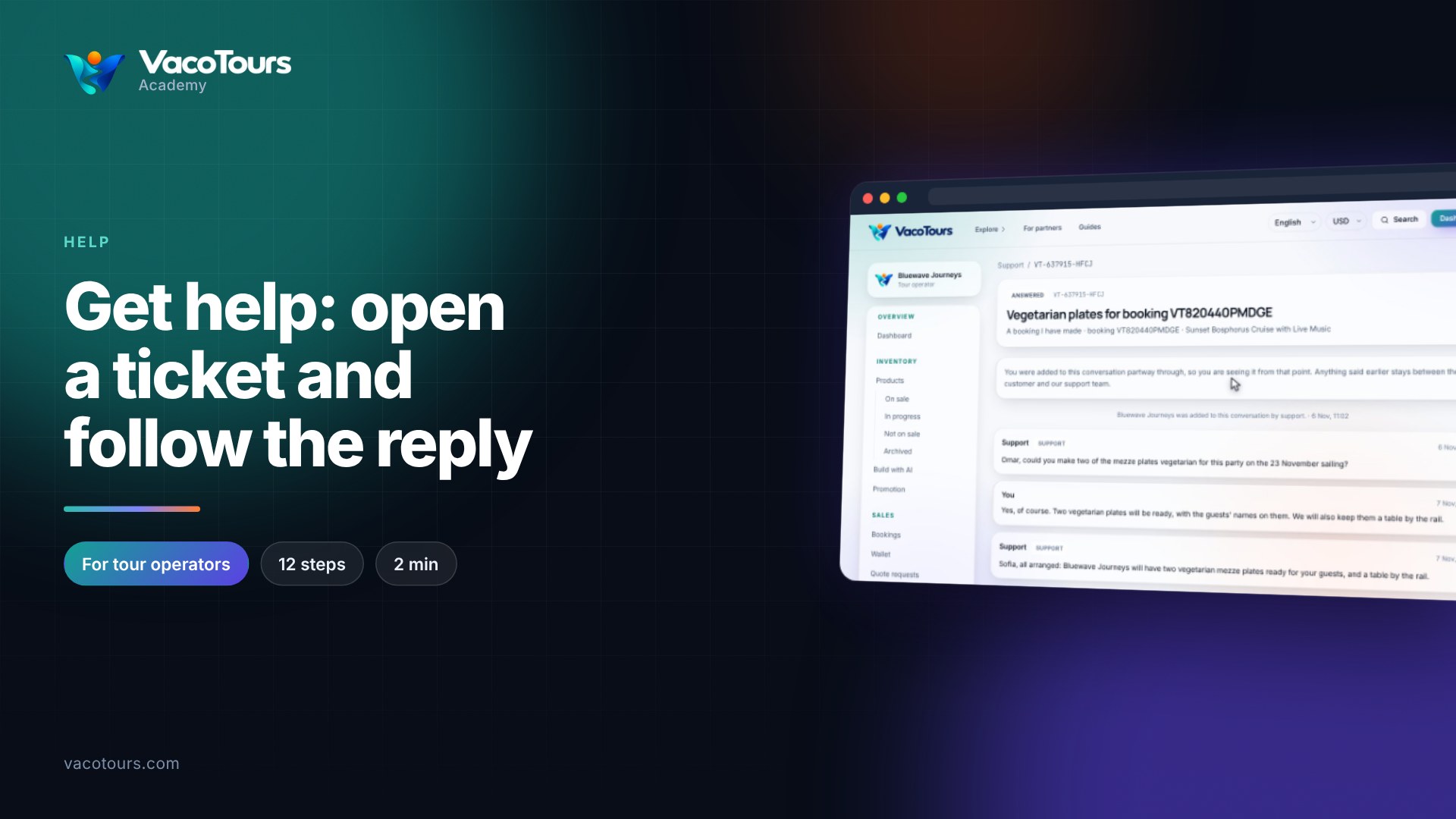
Get help: open a ticket and follow the reply
Follow a support conversation and reply to it, then open a new ticket about a booking with the right type and details.
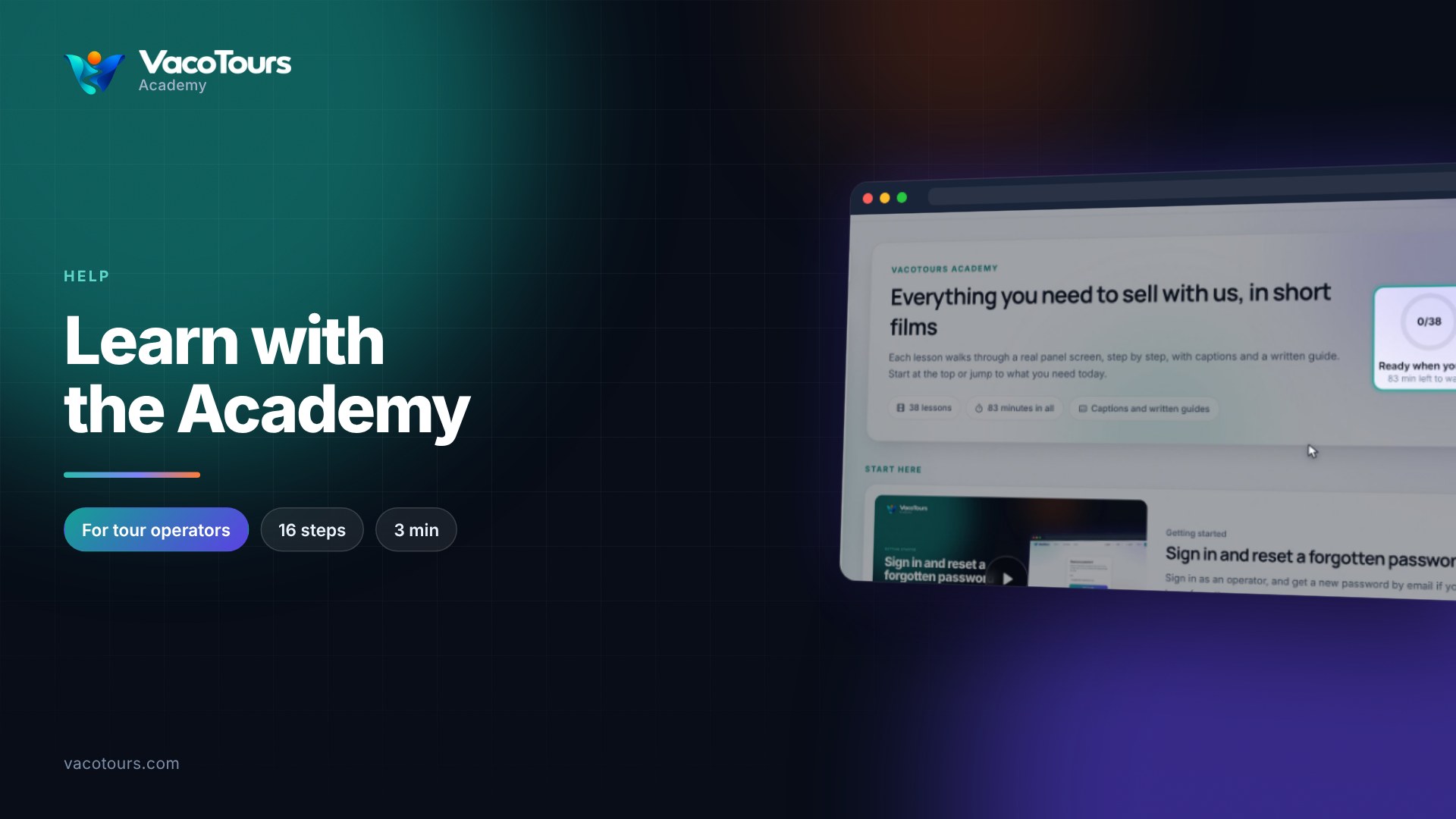
Learn with the Academy
Find a lesson by search or subject, then use its chapters, captions in your language, speed, written guide and transcript.