Loading
This guide walks you through the VacoTours supplier panel, starting on the overview page. You will see what the summary shows, where your latest bookings appear and where each area of the panel lives.
Knowing the layout saves you time later, whether you are checking earnings, answering a quote request or connecting your own system.
Open the supplier overview page. This is the home base for everything you sell on VacoTours, and every other area is reachable from here.
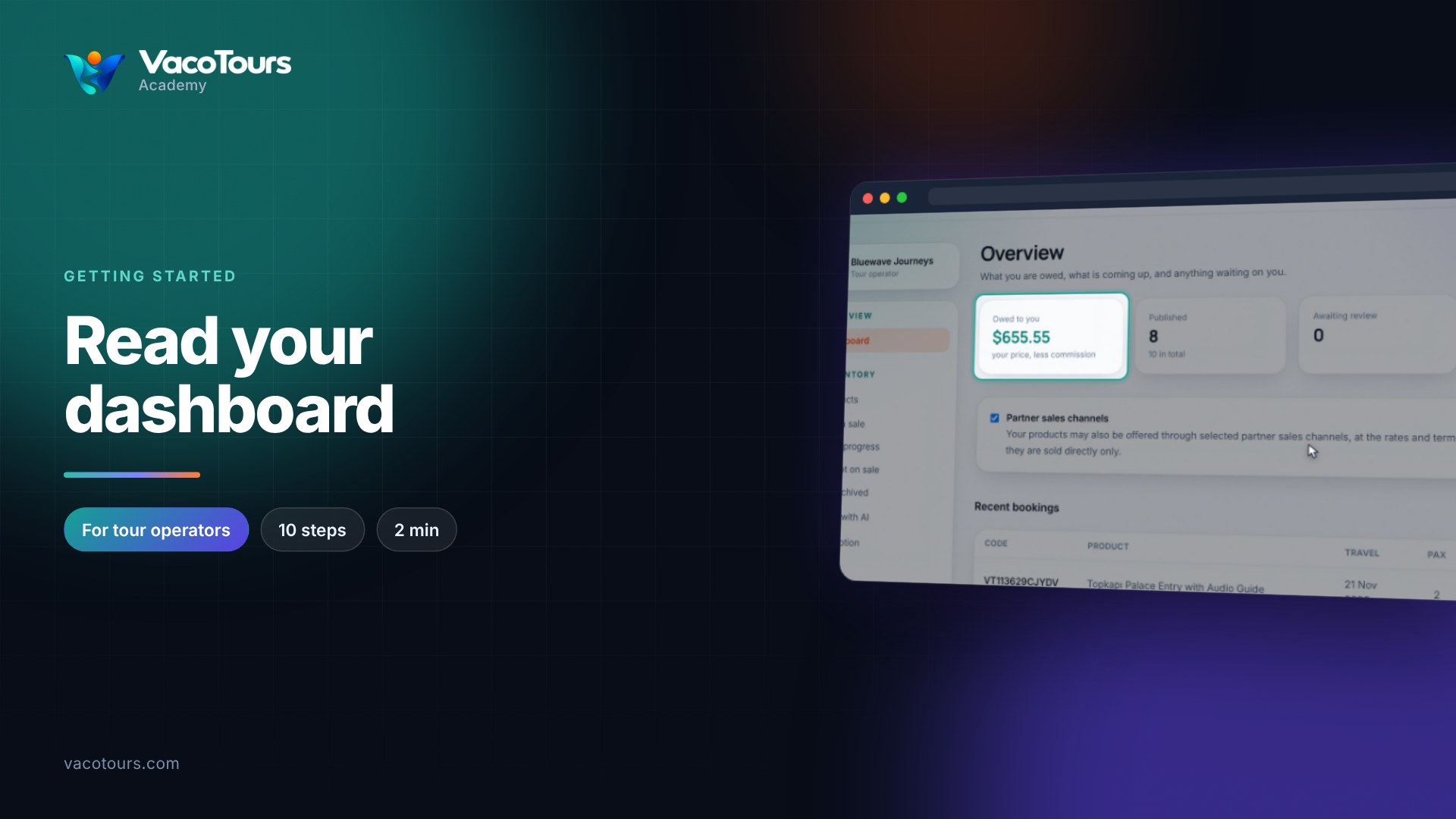
Look at the Overview cards. Owed to you is your earnings after commission. Beside it you will find how many products are Published, how many are Awaiting review, and your Upcoming departures.
Find the Partner sales channels switch. It decides whether your products can also be sold through selected partner channels, at the rates and terms you set. If you turn it off, your products are sold directly only. Do not change it for now; just note where it is.
Careful. Changing the Partner sales channels switch affects where your products can be sold. Leave it as it is unless you mean to change your distribution.
Scroll down to Recent bookings, which lists your latest reservations as they come in. Bookings appear here once a product is published and has availability. Click All bookings to open the full list.
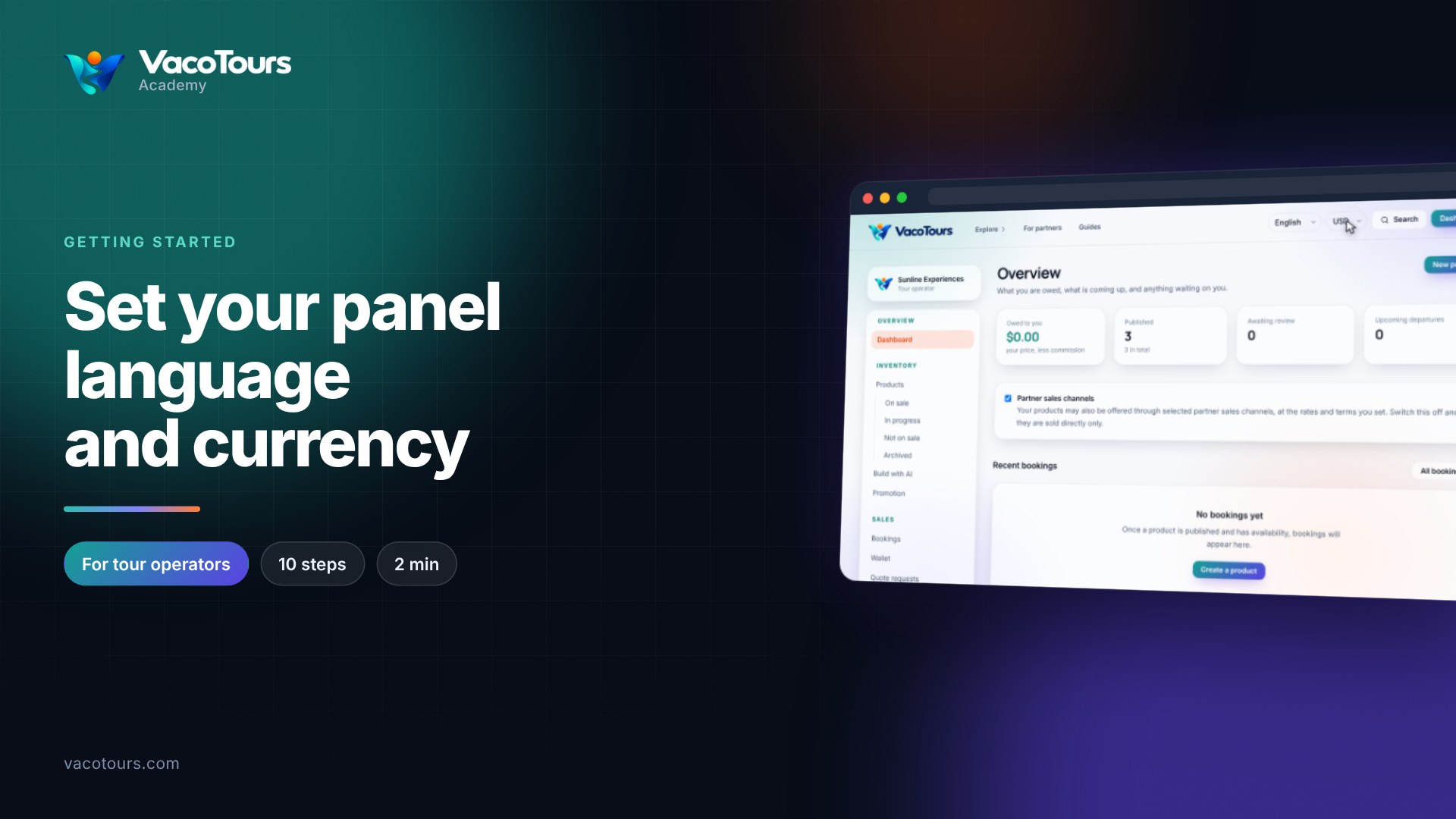
In the menu on the left, look under Inventory. Products holds all your listings, sorted into On sale, In progress, Not on sale and Archived. Build with AI helps you draft a new product, and Promotion lets you raise your visibility.
Move to Sales. Bookings lists every reservation you receive. Wallet shows your earnings and is where you request withdrawals. Quote requests collects enquiries from trade buyers for products you price on request.
Under Integration, API keys lets you connect your own booking system. Under Help, Academy has more guides like this one, and Support is where you reach our team.
At the top right, use the two selectors. The first sets the language your listings are shown in. The one beside it sets the currency for prices; here it is set to US dollars.
Tip. The language and currency selectors only change how the panel displays your listings and prices. They do not change the listings themselves.